Customize this template right here and download print-ready files.
- Page sizeUS Letter, landscape
- FilesPDF, PNG and JPG
- Print quality300 DPI
- FontsGreat Vibes, Cormorant Garamond
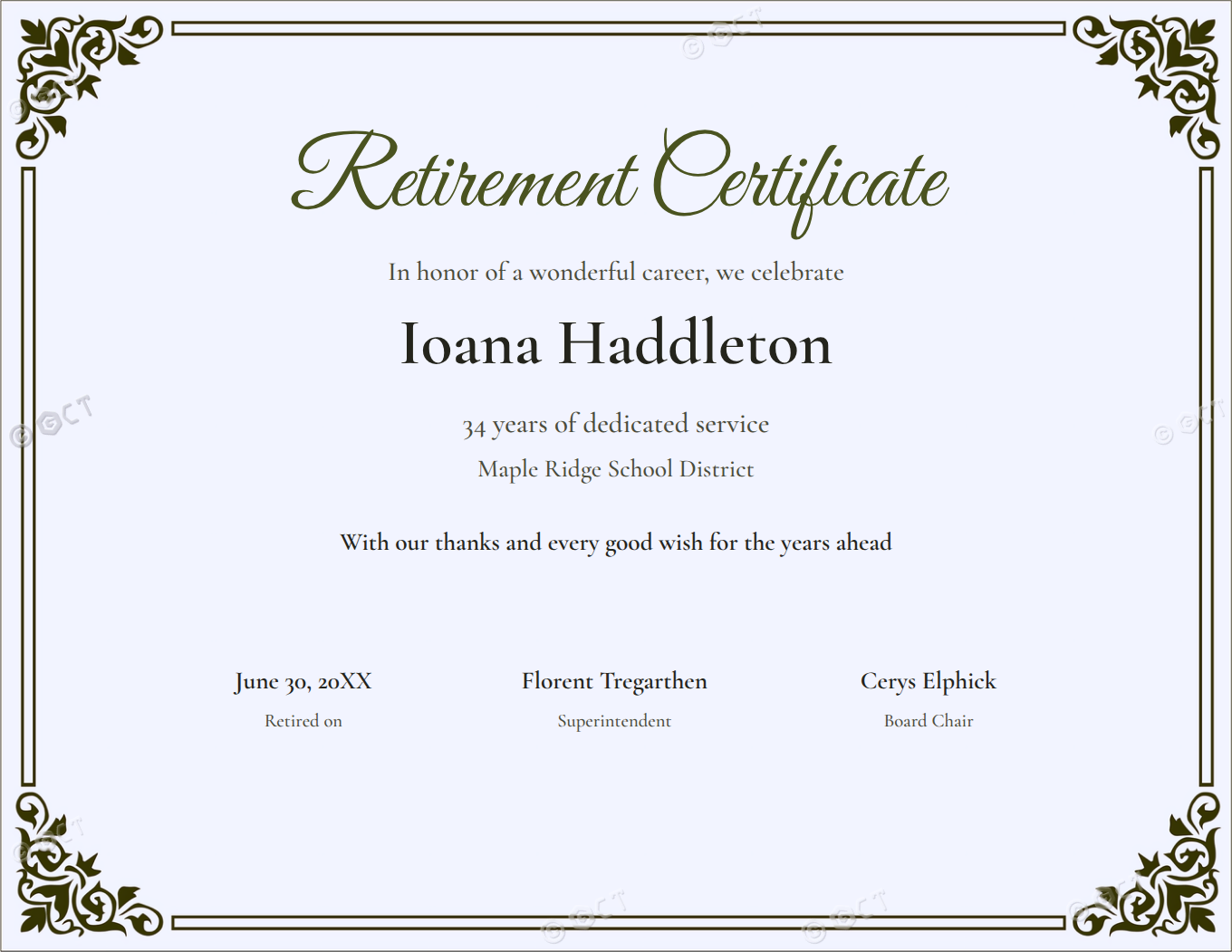
Olive Corners Retirement Certificate
Dark olive flourishes fill the four corners of a pale lavender page, joined by a fine double line along each edge.
Nothing to install. You type right on the certificate.
You can change
- Recipient's name
- Years of service
- Organization
- What it is for
- Date
- First person presenting it
- Second person presenting it
Every text can also be made bigger or smaller, and moved.
- What you see is what prints
- Prints at home on plain or card paper
- 9,553 certificates downloaded
How the builder works
Step 1
Click a text
Any wording on the certificate opens for typing.
Step 2
Type over it
Who it is for, who it is from and what it is worth.
Step 3
Resize or move it
A− and A+ change the size; drag the cross to move it.
Step 4
Download
A PDF to print, and a PNG and a JPG to send.
More Retirement Certificate Templates
See all Retirement Certificate Templates
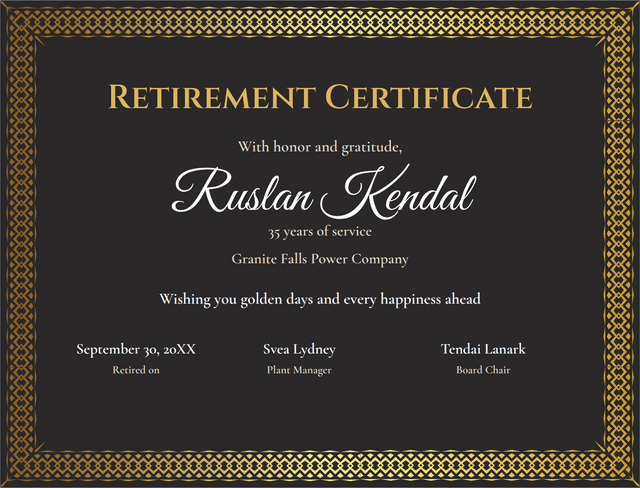
- Black and Gold Braid Retirement Certificate
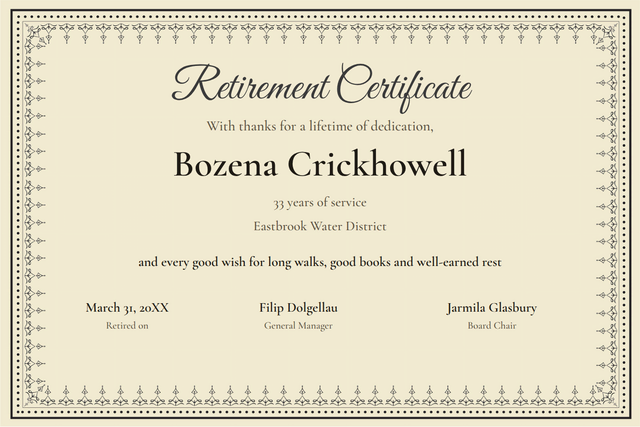
- Ivory Fleuron Retirement Certificate
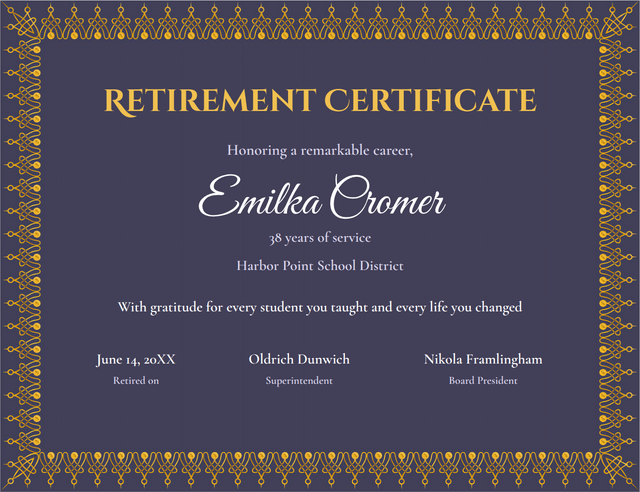
- Navy and Gold Lace Retirement Certificate
- Scroll Corners Employee Retirement Certificate
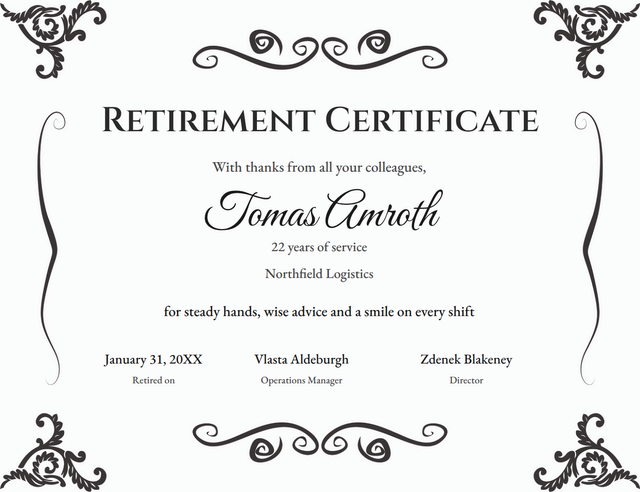
- Copper Flourish Retirement Certificate
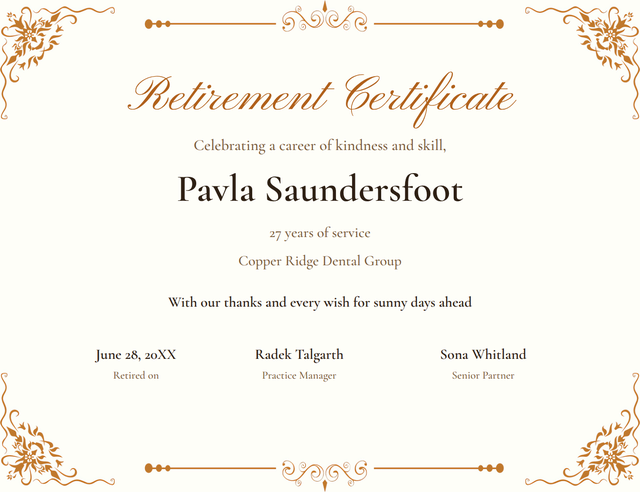
- Navy Arabesque Retirement Certificate
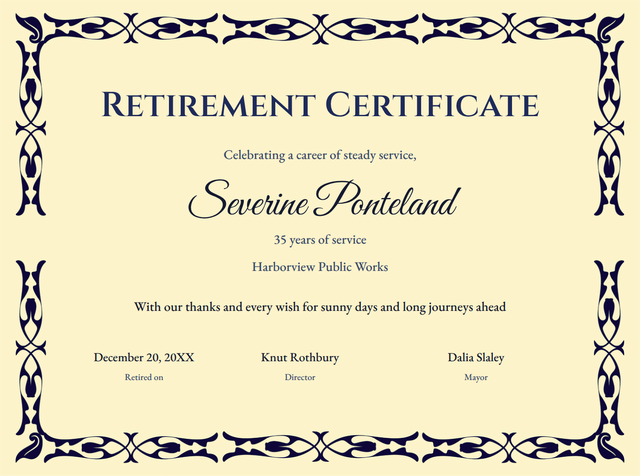
- Silver Star Corners Retirement Certificate
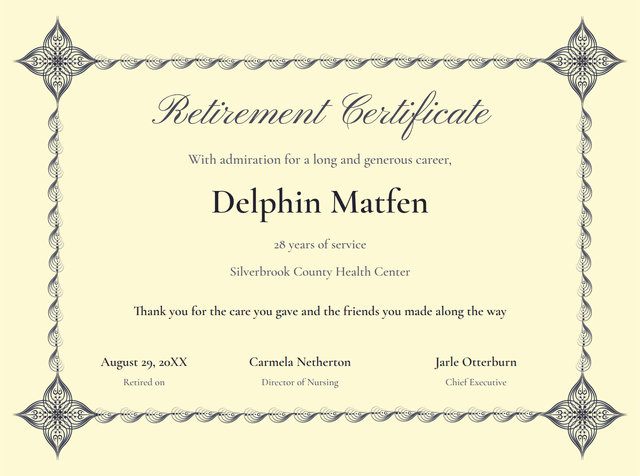
- Engraved Scroll Retirement Certificate
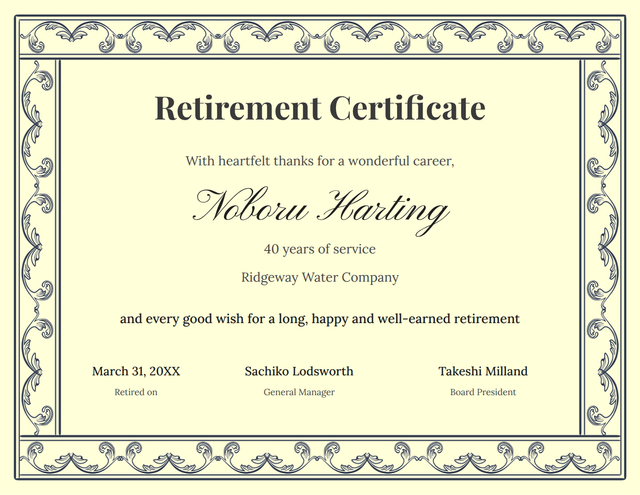
- Ivory Lace Retirement Certificate
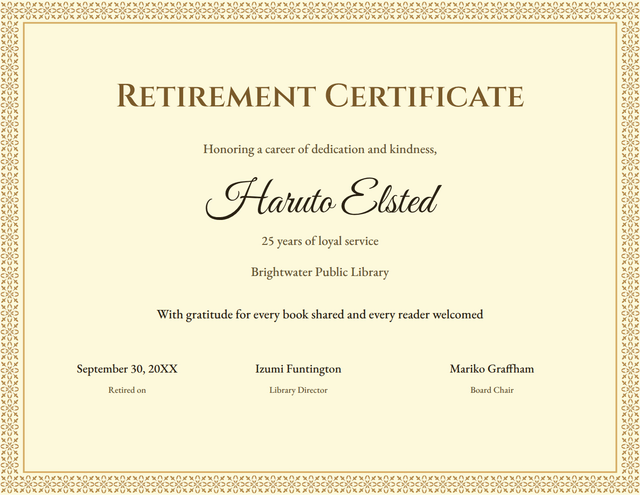
- Gold Lattice Teacher Retirement Certificate
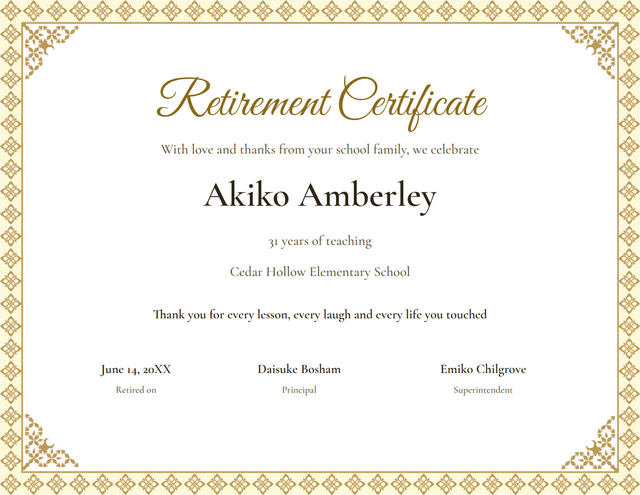
Common questions
About this design
A retirement certificate template with dark olive flourishes in the corners and a fine double line around a pale lavender page. A green script title and an opening line lead to the name, the years of service, the organization, what the thanks are for, the date retired and the two presenting it.
It suits a teacher, a school staff member or a colleague retiring after many years. It prints on US Letter, landscape, with a soft lavender ground.
Press "Customize this template", then click any text on the certificate and type your own. Every text can be made bigger or smaller, or dragged to a new spot. When it looks right, press Download.
Yes. Your PDF, PNG and JPG files are made from the same layout you see on the page, at 300 DPI.
US Letter, landscape. It prints at home or at a print shop, on plain paper or card. In the print settings, choose Actual size (100%), not Fit to page, so it comes out at its true size.