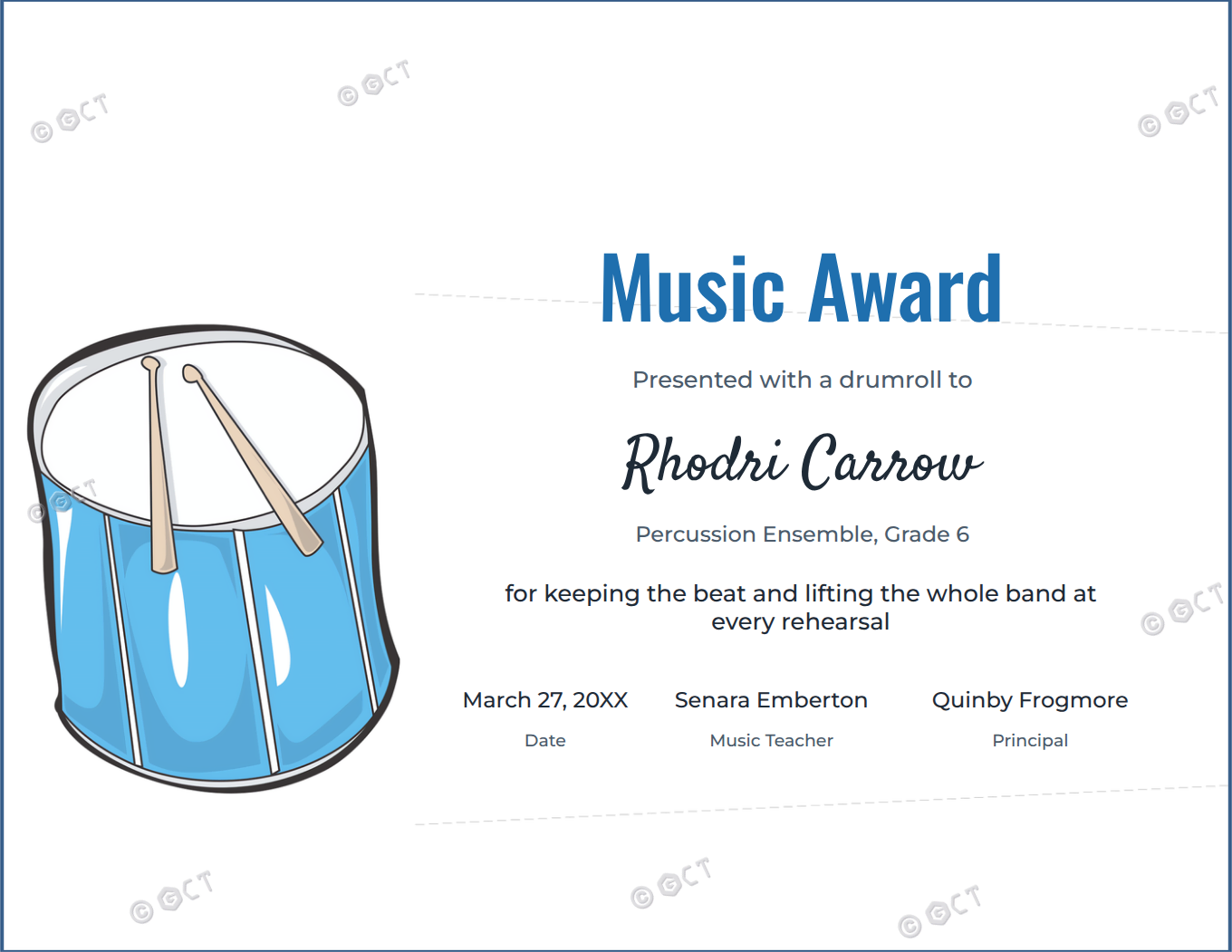
Customize this template right here and download print-ready files.
- Page sizeUS Letter, landscape
- FilesPDF, PNG and JPG
- Print quality300 DPI
- FontsOswald, Montserrat, Satisfy
Blue Drum Music Award Certificate
A shiny blue drum with two wooden drumsticks sits on the left of a clean white page with a thin blue edge.
Nothing to install. You type right on the certificate.
You can change
- Recipient's name
- Class or grade
- What it is for
- Date
- First person presenting it
- Second person presenting it
Every text can also be made bigger or smaller, and moved.
- What you see is what prints
- Prints at home on plain or card paper
- 9,553 certificates downloaded
How the builder works
Step 1
Click a text
Any wording on the certificate opens for typing.
Step 2
Type over it
Who it is for, who it is from and what it is worth.
Step 3
Resize or move it
A− and A+ change the size; drag the cross to move it.
Step 4
Download
A PDF to print, and a PNG and a JPG to send.
More School Award Certificate Templates
- Smiley Student of the Month Certificate
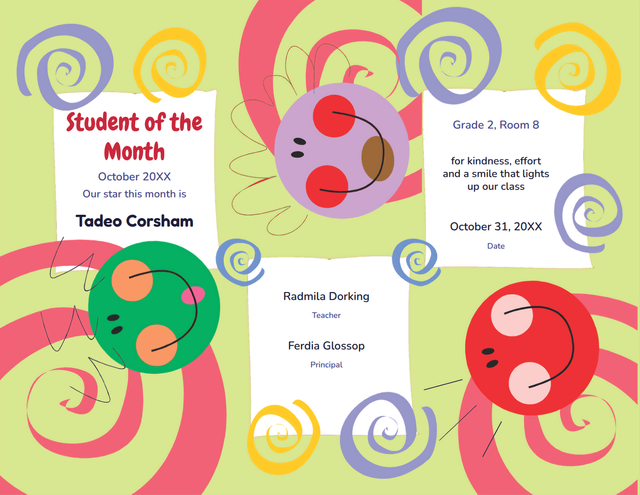
- Popcorn and Film Drama Award Certificate
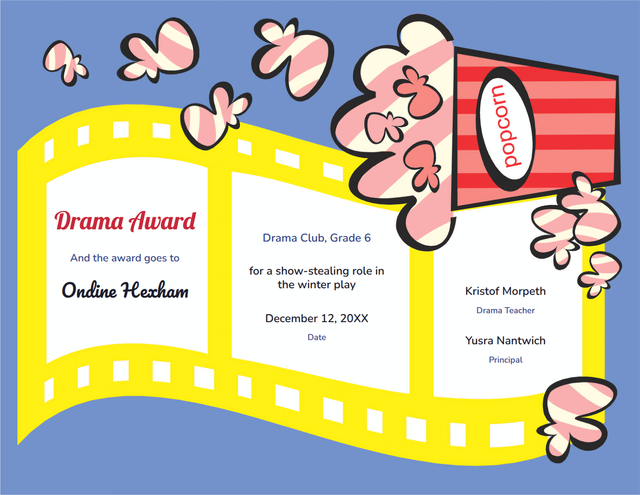
- Pink Flower Teacher Award Certificate
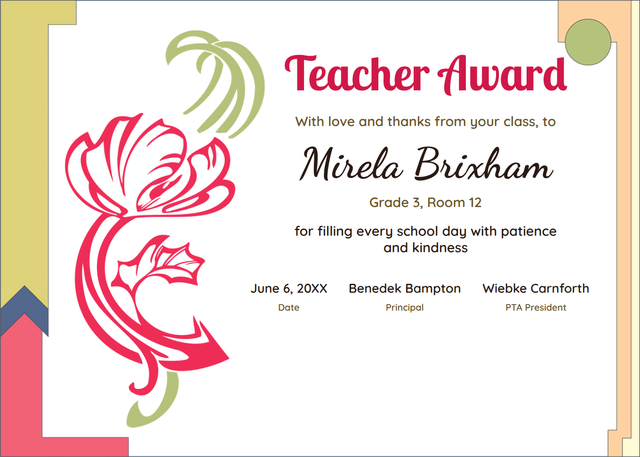
- Funky Music Award Certificate
- Spelling Bee Certificate of Achievement
- Safari Giraffe Certificate of Appreciation
- Blue Pencil Frame Award Certificate
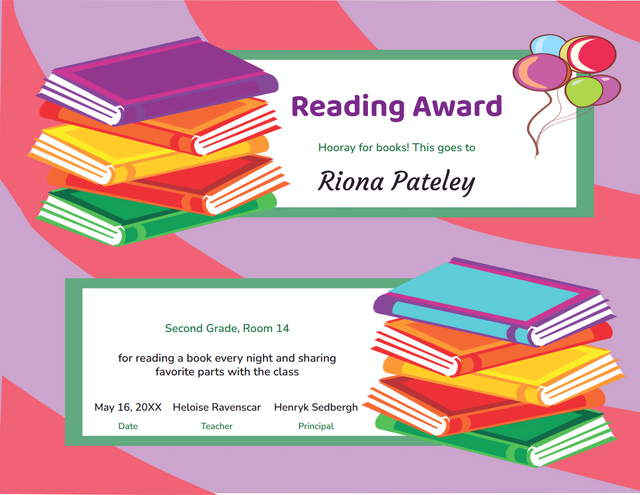
- Bookworm Certificate of Appreciation
- Orange Rose World’s Best Award Certificate
- Quill and Vine Certificate of Appreciation
- Mummy Halloween Costume Award Certificate
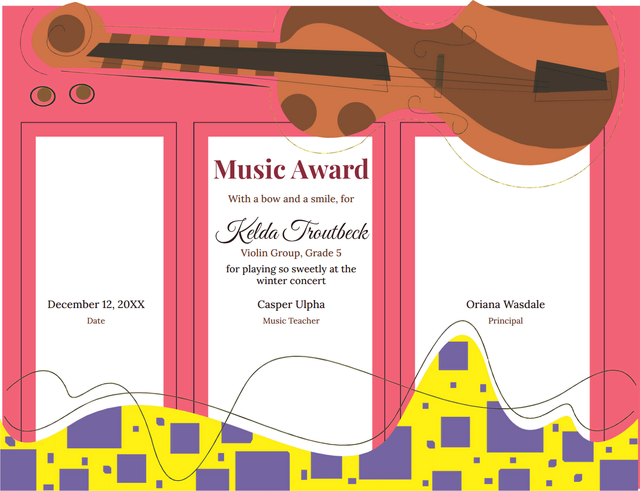
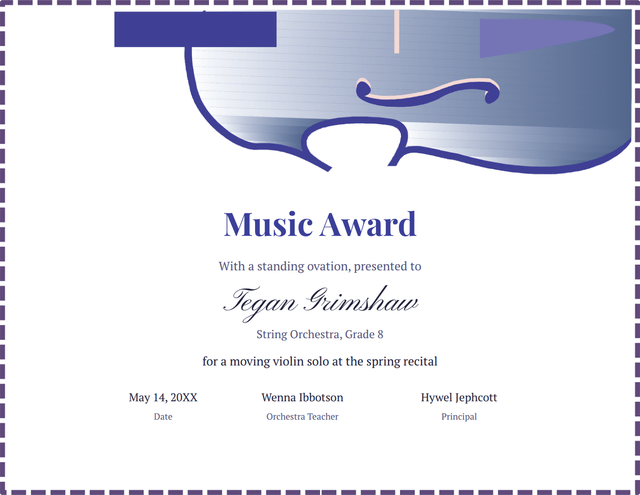
- Pink Violin Music Award Certificate
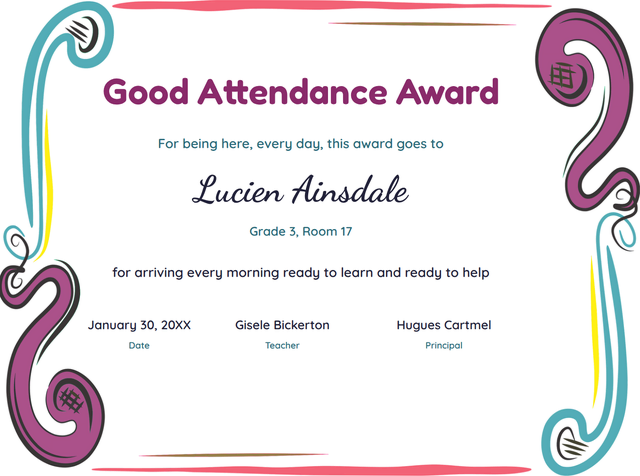
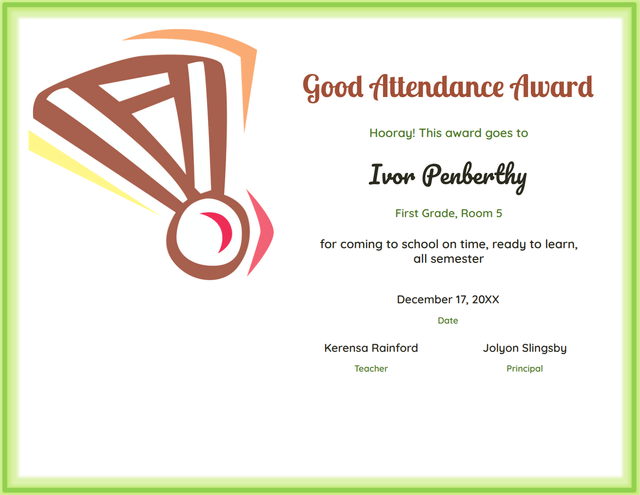
- Good Attendance Award Certificate
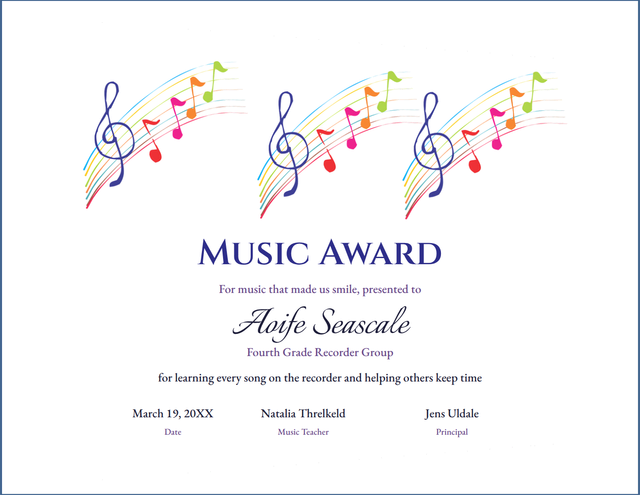
- Treble Clef Music Award Certificate
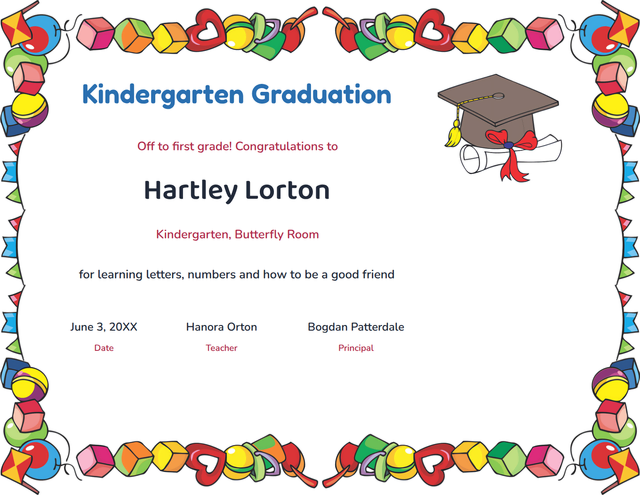
- Kindergarten Graduation Certificate
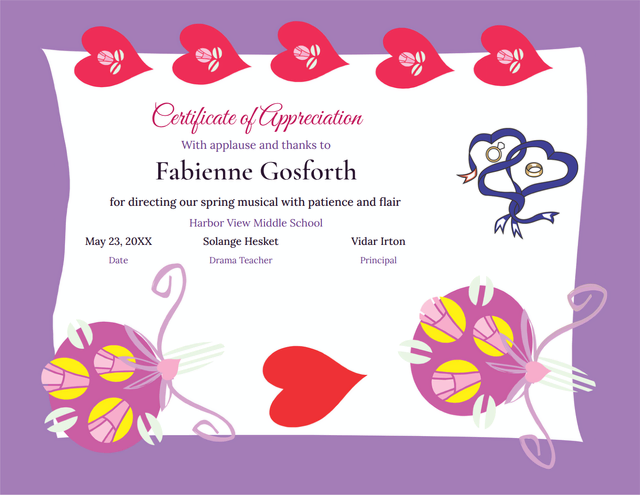
- Stage Couple Hearts Certificate of Appreciation
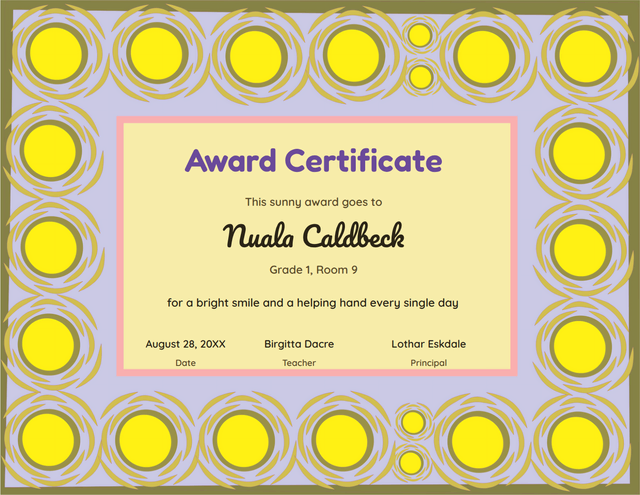
- Sunny Circles Award Certificate
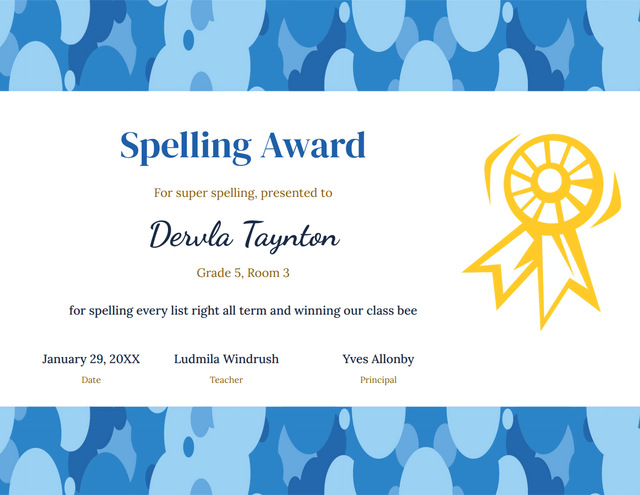
- Blue Ribbon Spelling Award Certificate
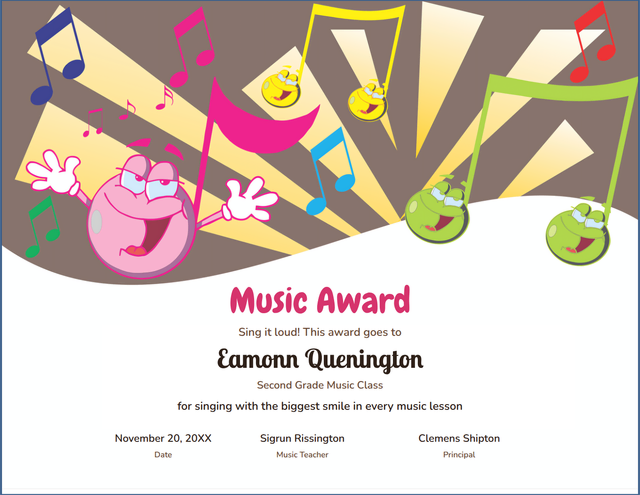
- Smiley Notes Music Award Certificate
- Bright Shapes Certificate of Appreciation
- Science Student Certificate of Appreciation
- Laurel Chain Certificate of Excellence
- Red Rose Stripes Certificate of Appreciation
- Reading Achievement Certificate with Books
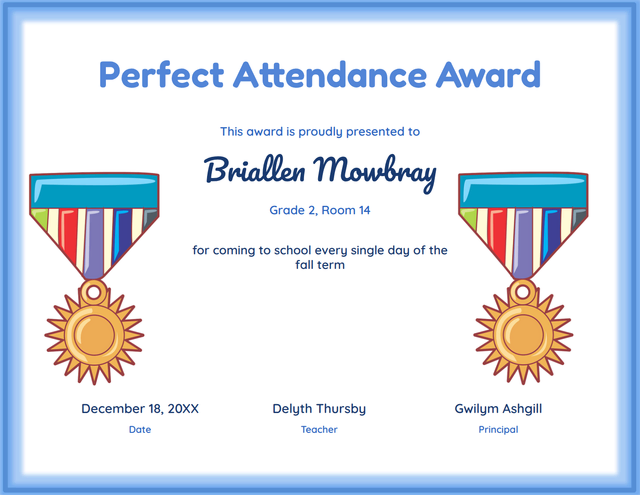
- Perfect Attendance Award Certificate
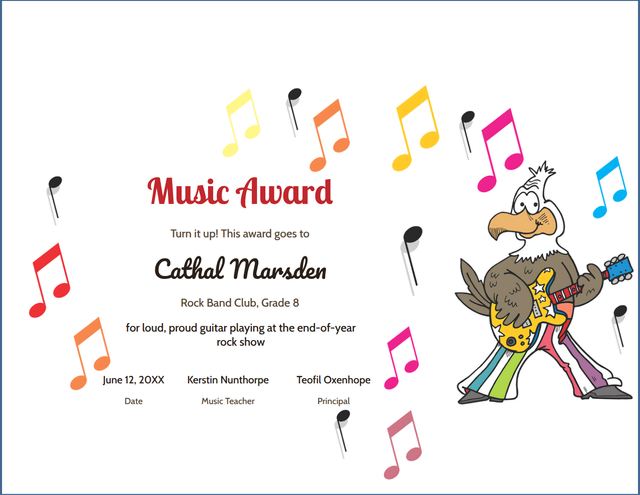
- Guitar Eagle Music Award Certificate
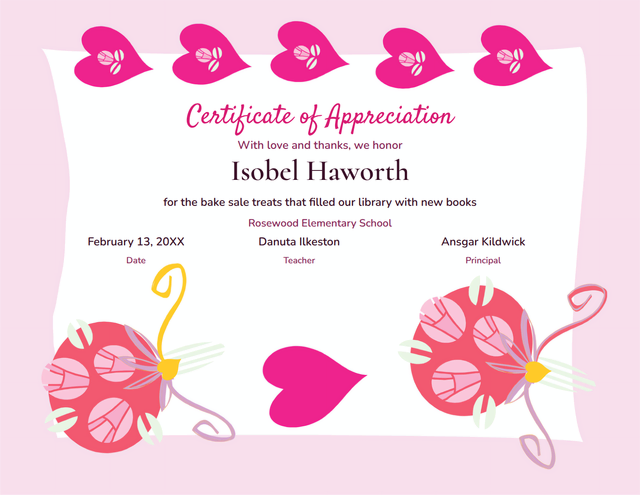
- Pink Hearts Certificate of Appreciation
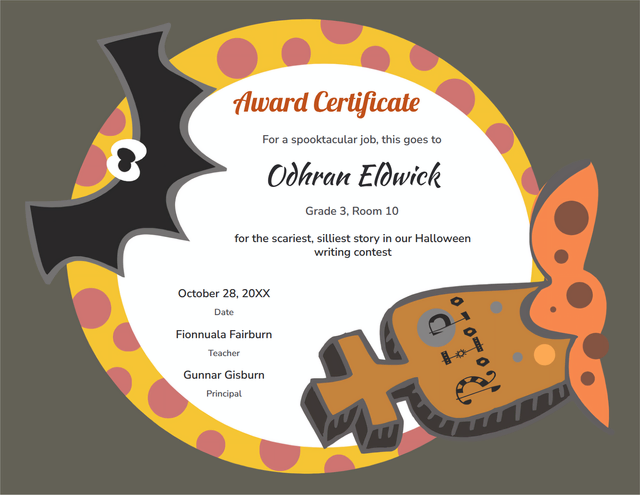
- Bat and Coffin Halloween Award Certificate
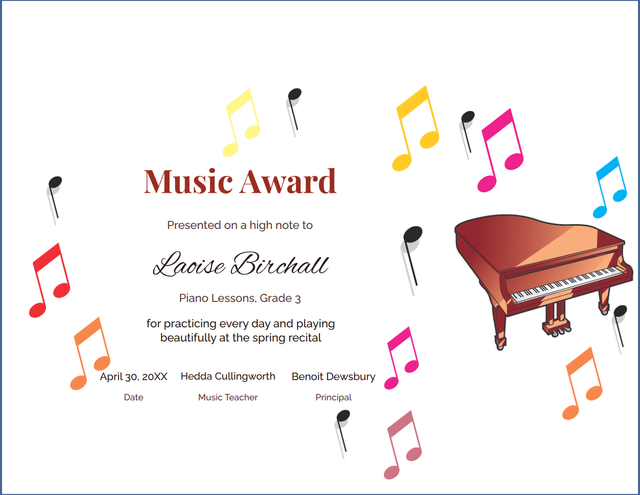
- Piano Notes Music Award Certificate
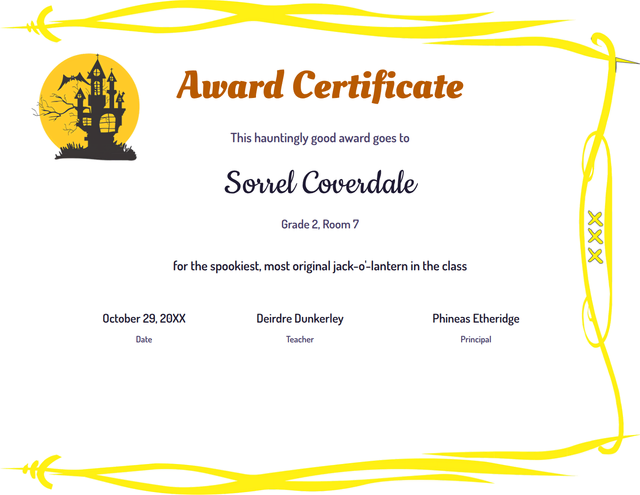
- Haunted House Halloween Award Certificate
- Hats Off Graduation Award Certificate

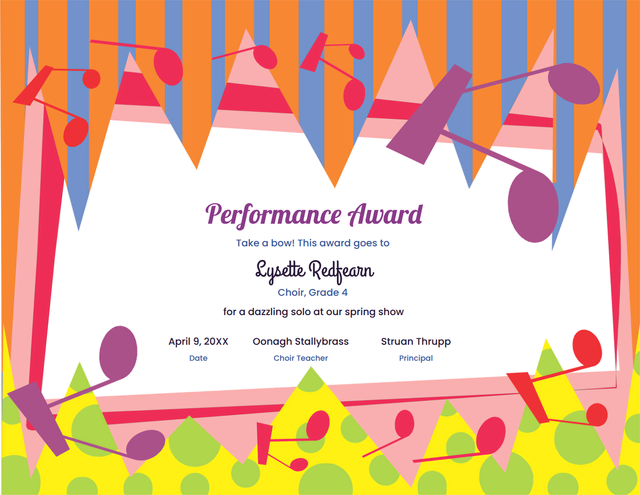
- Stage Notes Performance Award Certificate
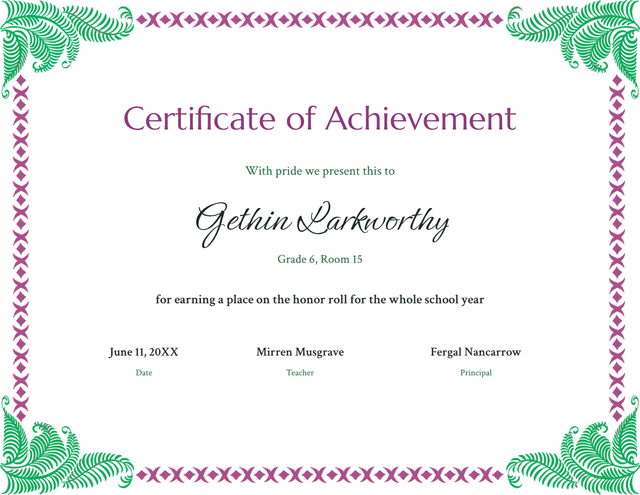
- Fern Corners Certificate of Achievement
- Silver Violin Music Award Certificate
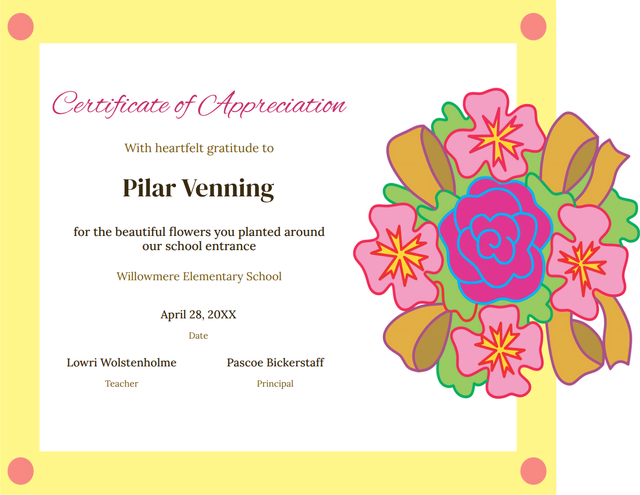
- Flower Bouquet Certificate of Appreciation
- Classroom Attendance Award Certificate
- Leafy Swirl Border Certificate of Appreciation
- Vine Oval Certificate of Appreciation
- Event Organizer Certificate of Appreciation
- Blue Damask Certificate of Excellence
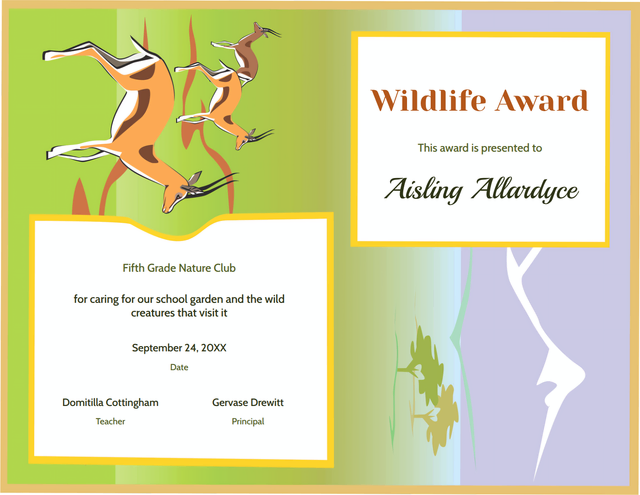
- Leaping Gazelle Wildlife Award Certificate
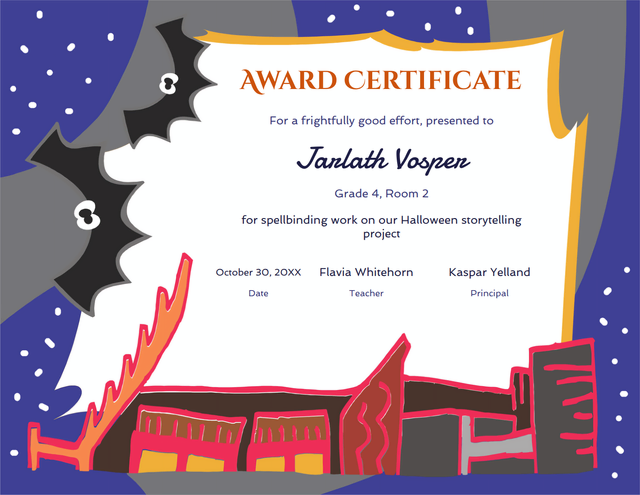
- Vampire Bats Halloween Award Certificate
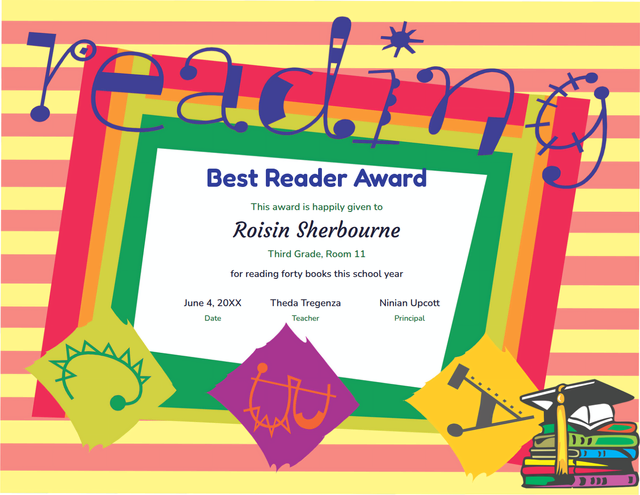
- Best Reader Award Certificate
- Retro Guitar Performance Award Certificate

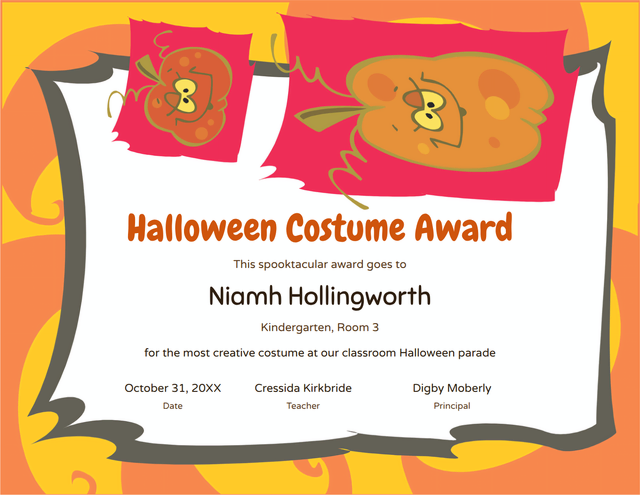
- Pumpkin Halloween Costume Award Certificate
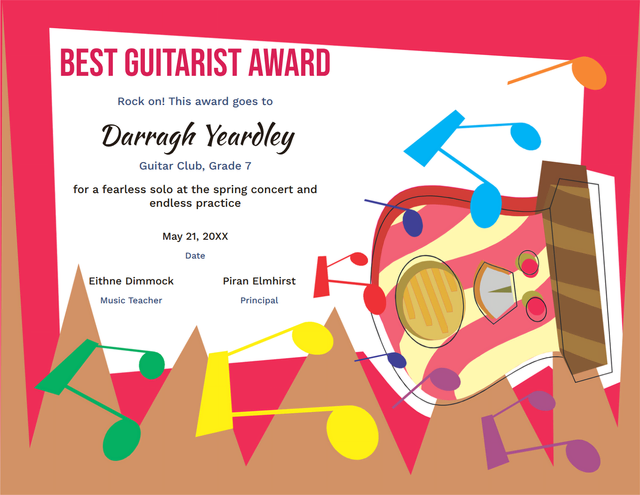
- Best Guitarist Award Certificate
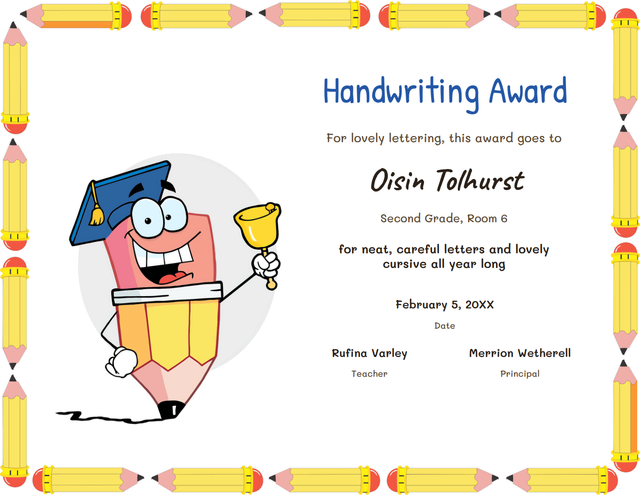
- Pencil Mascot Handwriting Award Certificate
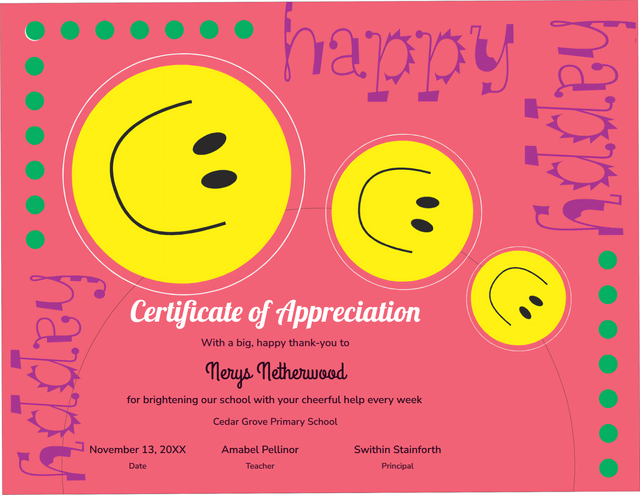
- Happy Smiley Certificate of Appreciation
Common questions
About this design
A school award certificate template with a shiny blue drum and two wooden drumsticks on the left of a white page with a thin blue edge. A tall blue title and an opening line lead to the student's name, the class or ensemble, what it is for, the date and the music teacher and principal presenting it.
It suits a drummer, a percussion group or a band member at a school concert. It prints on US Letter paper, landscape, the drum at the left.
Press "Customize this template", then click any text on the certificate and type your own. Every text can be made bigger or smaller, or dragged to a new spot. When it looks right, press Download.
Yes. Your PDF, PNG and JPG files are made from the same layout you see on the page, at 300 DPI.
US Letter, landscape. It prints at home or at a print shop, on plain paper or card. In the print settings, choose Actual size (100%), not Fit to page, so it comes out at its true size.