Customize this template right here and download print-ready files.
- Page size10.5 × 7.25 in, landscape
- FilesPDF, PNG and JPG
- Print quality300 DPI
- FontsBebas Neue, Work Sans, Kaushan Script
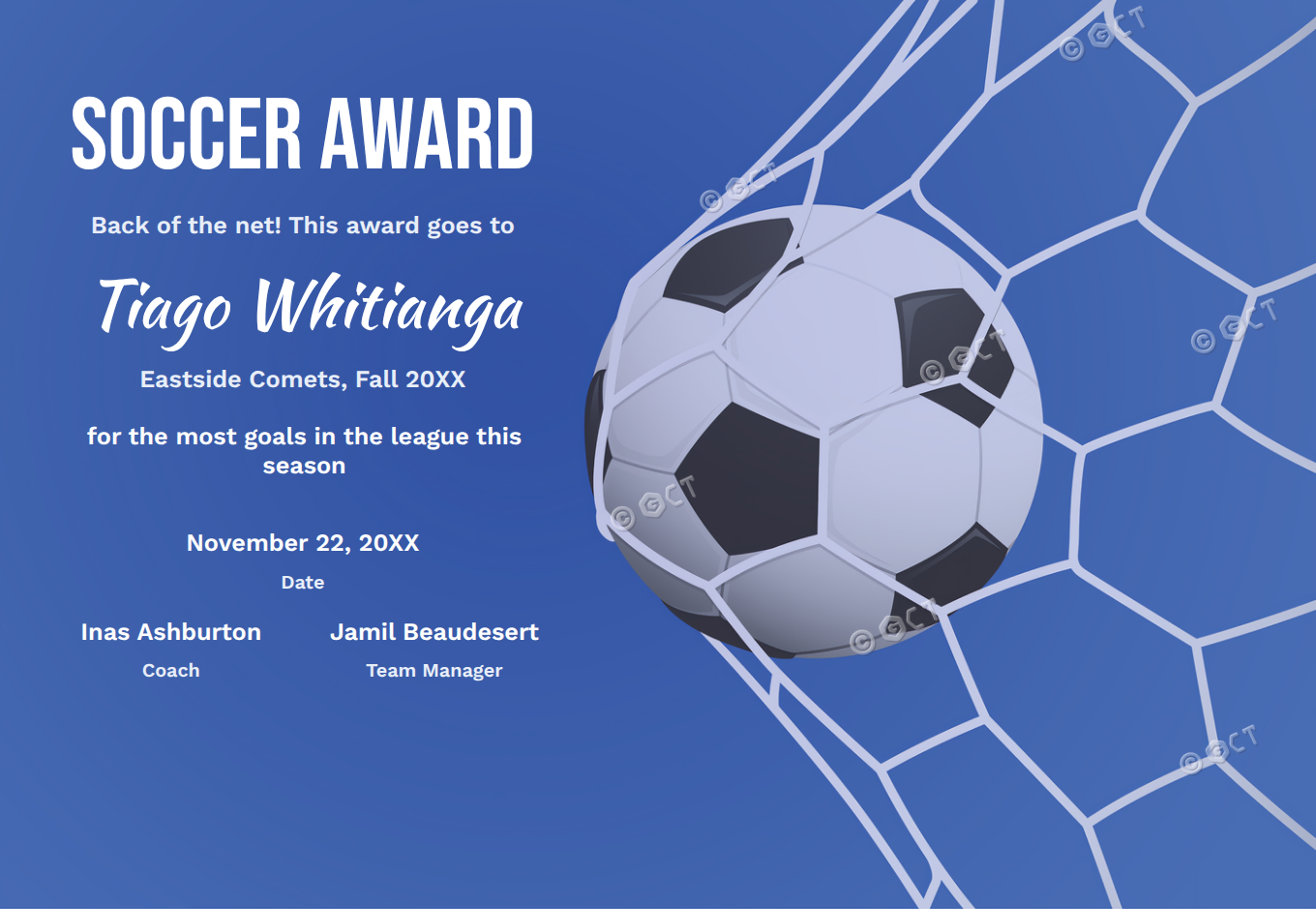
Soccer Ball in the Net Award Certificate
A soccer ball hits the back of a white net on the right of a deep blue page, with white lettering at the left.
Nothing to install. You type right on the certificate.
You can change
- Recipient's name
- Team and season
- What it is for
- Date
- First person presenting it
- Second person presenting it
Every text can also be made bigger or smaller, and moved.
- What you see is what prints
- Prints at home on plain or card paper
- 9,553 certificates downloaded
How the builder works
Step 1
Click a text
Any wording on the certificate opens for typing.
Step 2
Type over it
Who it is for, who it is from and what it is worth.
Step 3
Resize or move it
A− and A+ change the size; drag the cross to move it.
Step 4
Download
A PDF to print, and a PNG and a JPG to send.
More Sports Award Certificate Templates
- Dancer Split Gymnastics Award Certificate
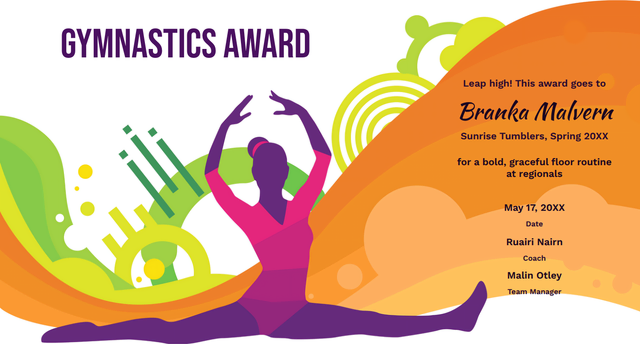
- Trophy Hand Sportsmanship Award Certificate
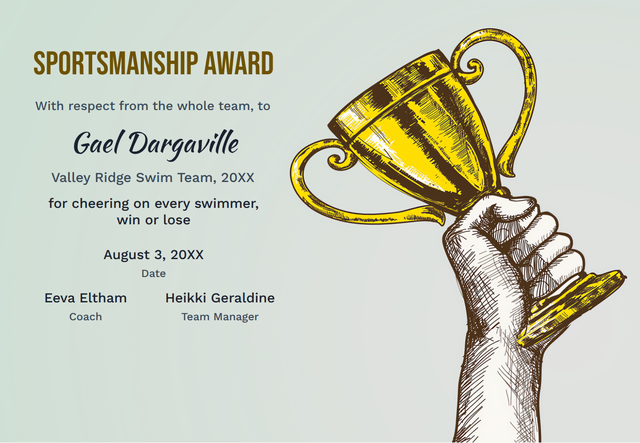
- Gold Medal Sportsmanship Award Certificate
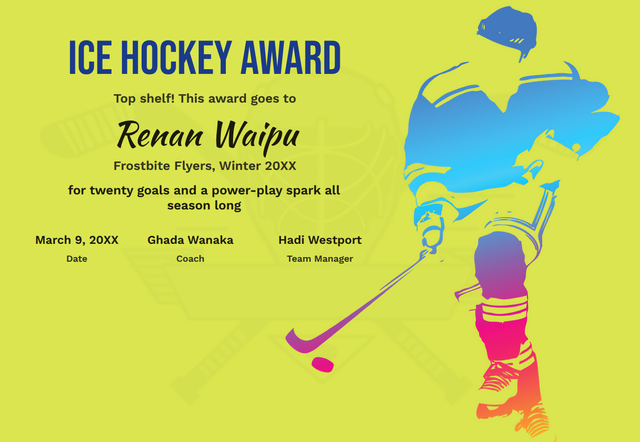
- Ice Hockey Player Award Certificate
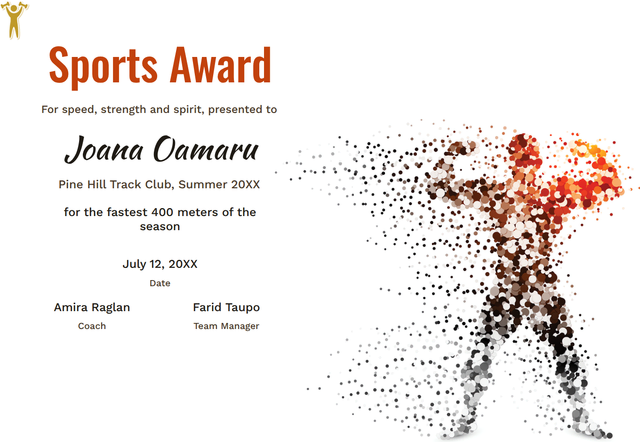
- Particle Athlete Award Certificate
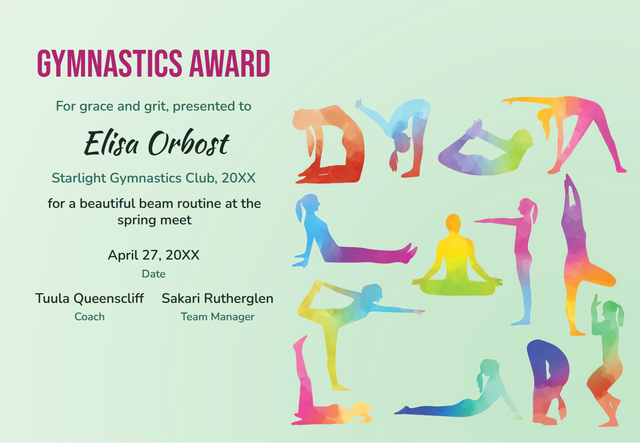
- Rainbow Poses Gymnastics Award Certificate
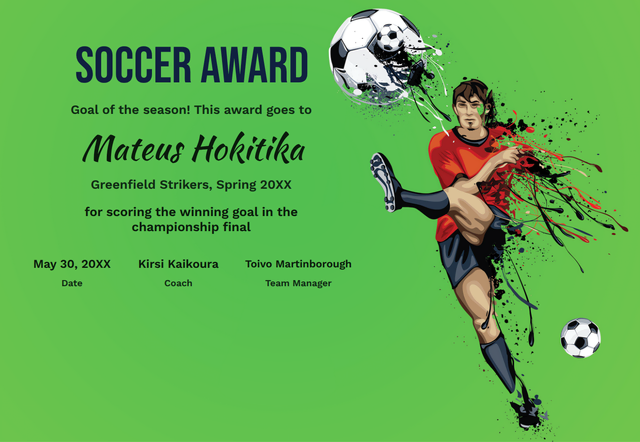
- Soccer Kick Award Certificate
- Soccer Silhouette Award Certificate
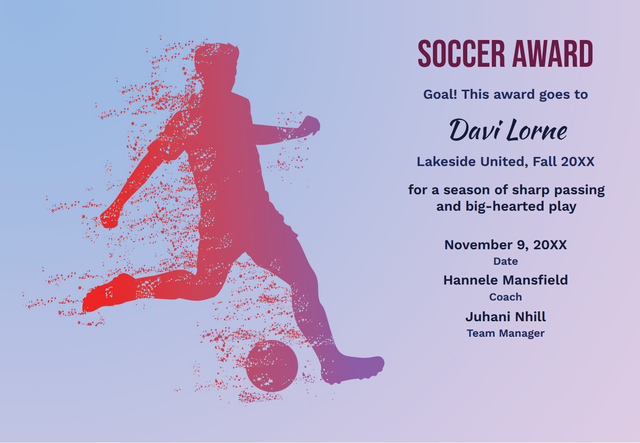
- Basketball Players Award Certificate
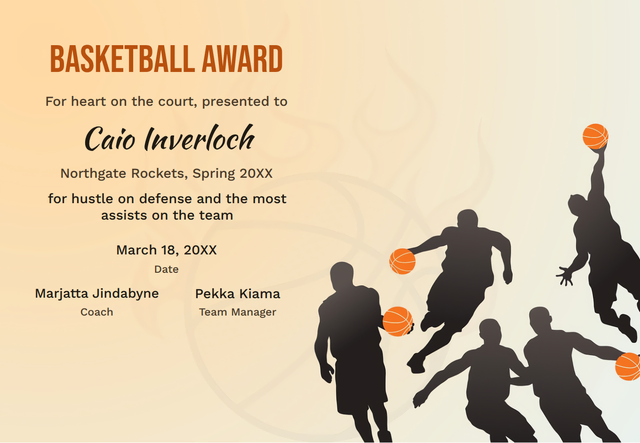
- Basketball Hoop Award Certificate
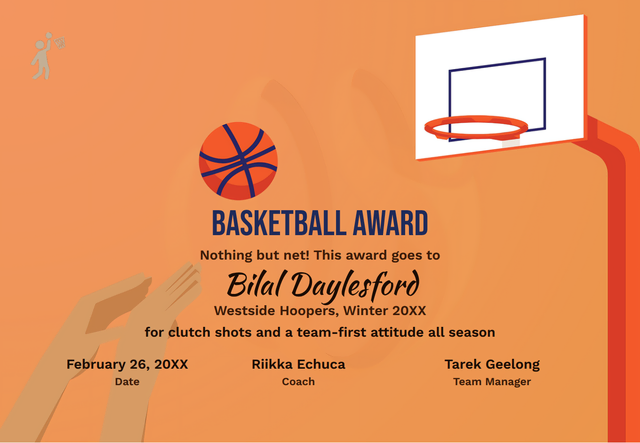
- Badminton Smash Award Certificate
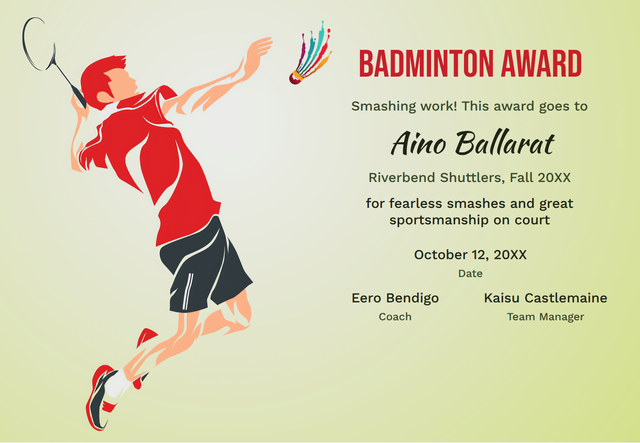
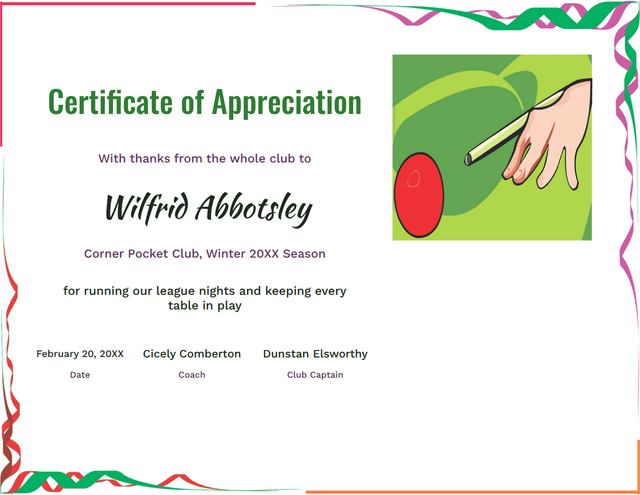
- Snooker Champion Certificate of Appreciation
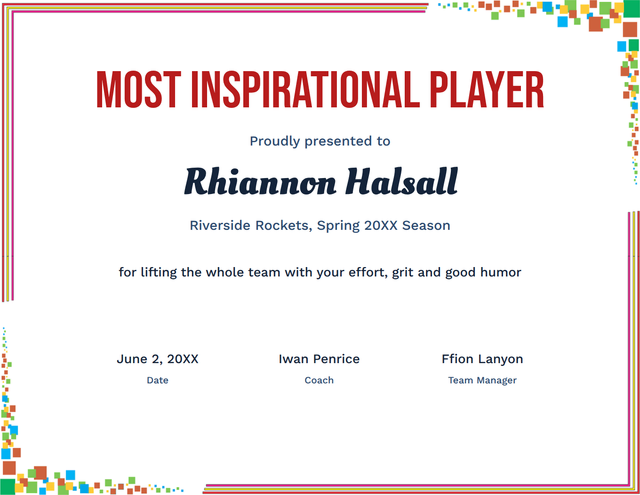
- Most Inspirational Player Award Certificate
Common questions
About this design
A sports award certificate template with a soccer ball hitting the back of a white net on the right of a deep blue page. White lettering at the left runs from a bold title and an opening line to the name, the team and season, what it is for, the date and the coach and team manager presenting it.
It suits a league's top scorer, a goalkeeper of the year or a soccer team party. At 10.5 by 7.25 inches it prints on US Letter with a thin margin all around.
Press "Customize this template", then click any text on the certificate and type your own. Every text can be made bigger or smaller, or dragged to a new spot. When it looks right, press Download.
Yes. Your PDF, PNG and JPG files are made from the same layout you see on the page, at 300 DPI.
10.5 × 7.25 in, landscape. It prints at home or at a print shop, on plain paper or card. In the print settings, choose Actual size (100%), not Fit to page, so it comes out at its true size.