Customize this template right here and download print-ready files.
- Page sizeUS Letter, landscape
- FilesPDF, PNG and JPG
- Print quality300 DPI
- FontsCinzel, EB Garamond, Pinyon Script
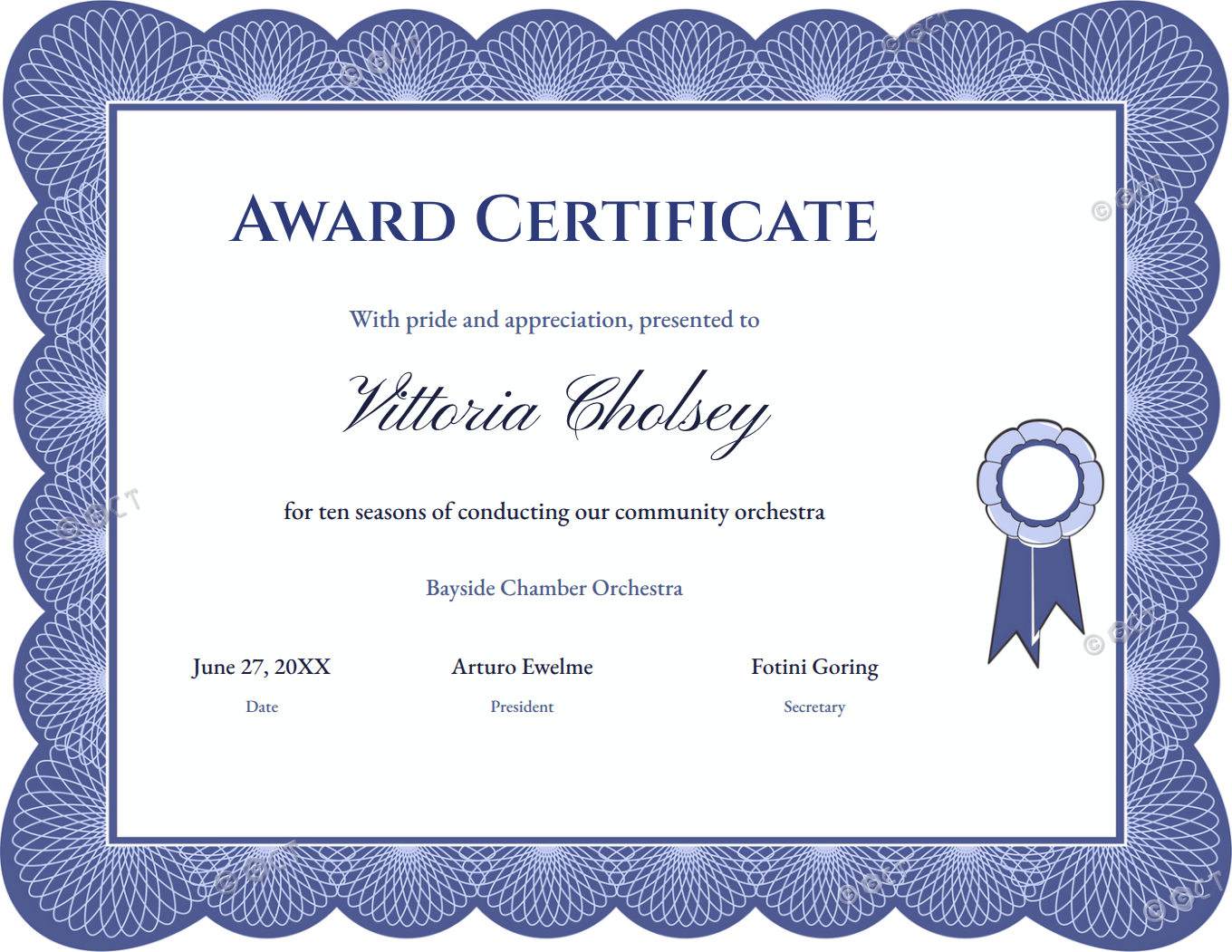
Blue Rosette Award Certificate
A scalloped border of blue guilloche rings frames a white panel, with a small blue rosette ribbon on the right.
Nothing to install. You type right on the certificate.
You can change
- Recipient's name
- What it is for
- Organization
- Date
- First person presenting it
- Second person presenting it
Every text can also be made bigger or smaller, and moved.
- What you see is what prints
- Prints at home on plain or card paper
- 9,553 certificates downloaded
How the builder works
Step 1
Click a text
Any wording on the certificate opens for typing.
Step 2
Type over it
Who it is for, who it is from and what it is worth.
Step 3
Resize or move it
A− and A+ change the size; drag the cross to move it.
Step 4
Download
A PDF to print, and a PNG and a JPG to send.
More Award Certificate Templates
See all Award Certificate Templates
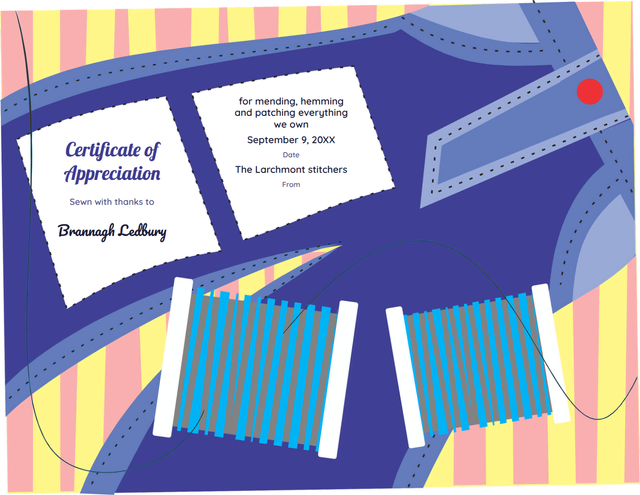
- Sewing Spools Certificate of Appreciation
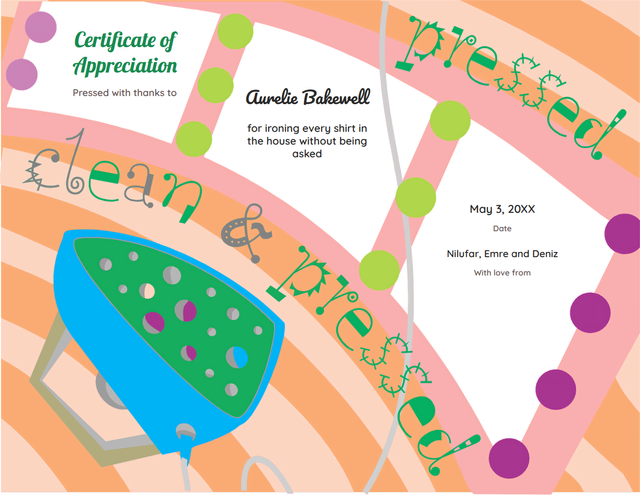
- Clean and Pressed Certificate of Appreciation
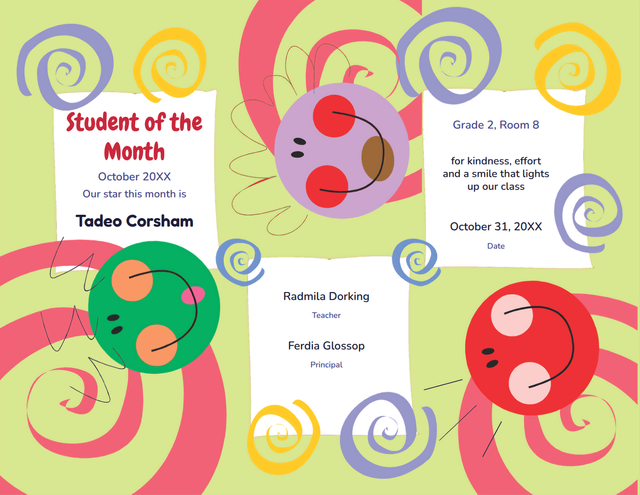
- Smiley Student of the Month Certificate
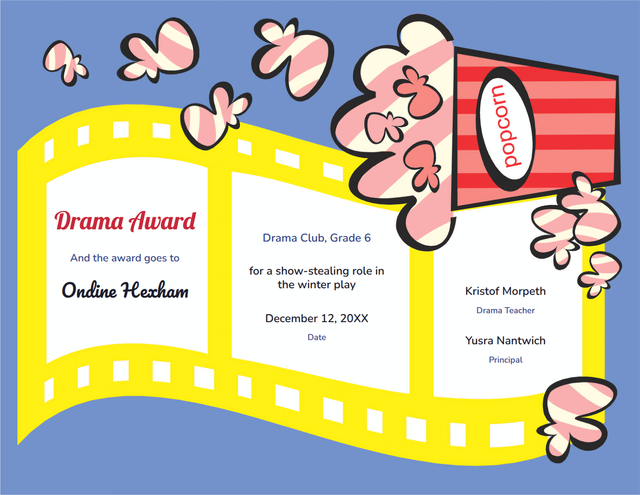
- Popcorn and Film Drama Award Certificate
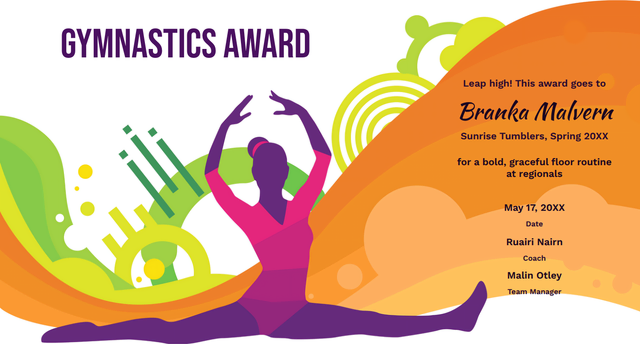
- Dancer Split Gymnastics Award Certificate
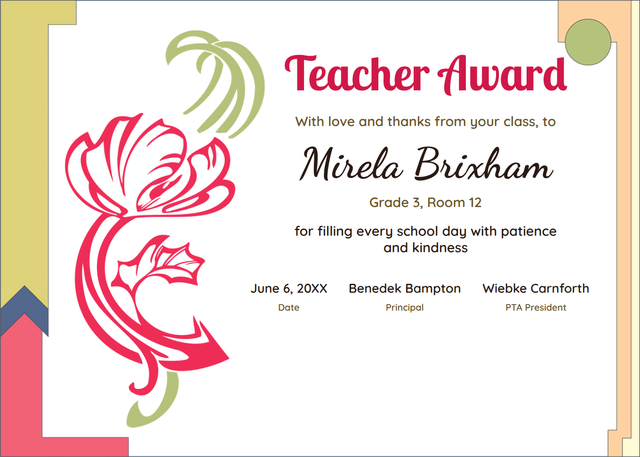
- Pink Flower Teacher Award Certificate
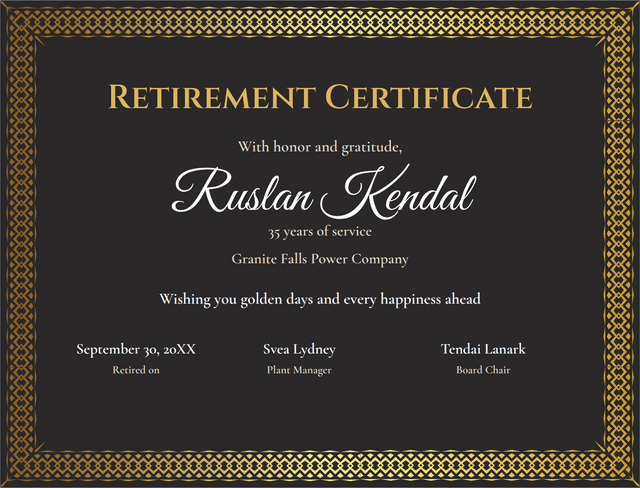
- Black and Gold Braid Retirement Certificate
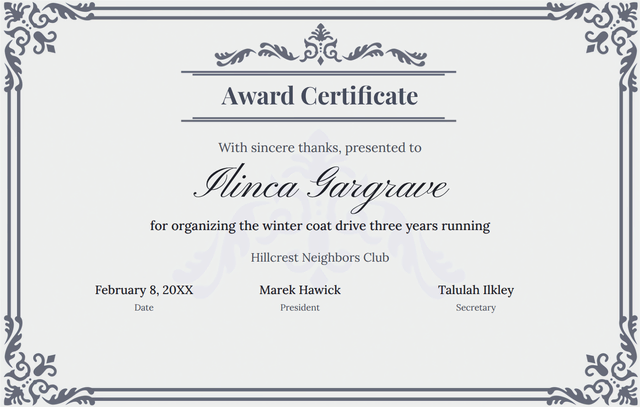
- Slate Ornament Award Certificate
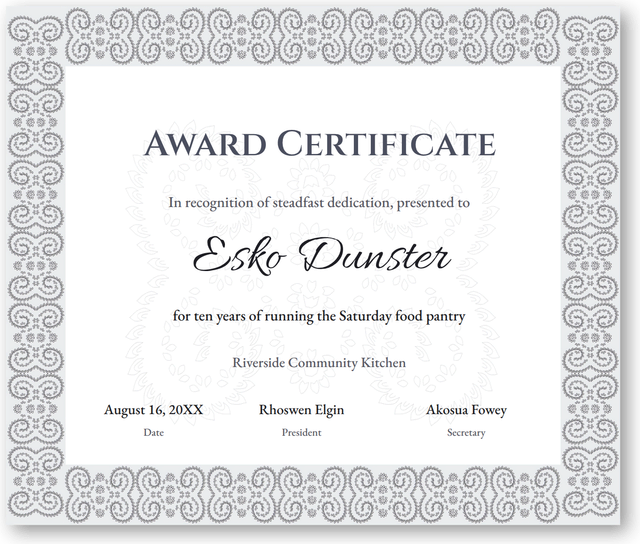
- Silver Lace Award Certificate
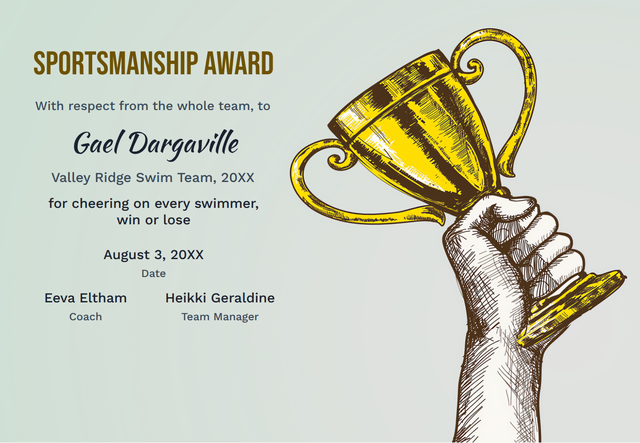
- Trophy Hand Sportsmanship Award Certificate
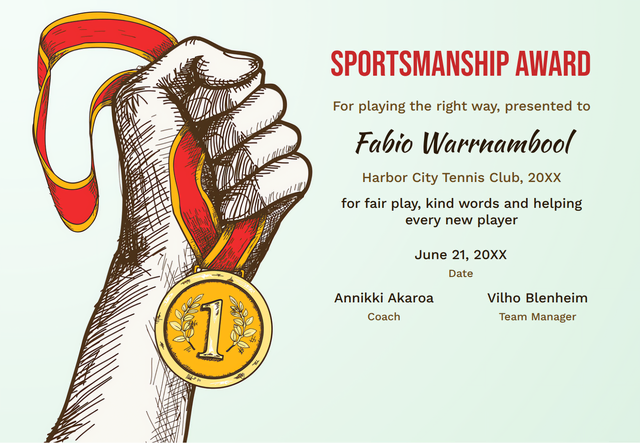
- Gold Medal Sportsmanship Award Certificate
- Soccer Ball in the Net Award Certificate

- Ice Hockey Player Award Certificate

- Particle Athlete Award Certificate

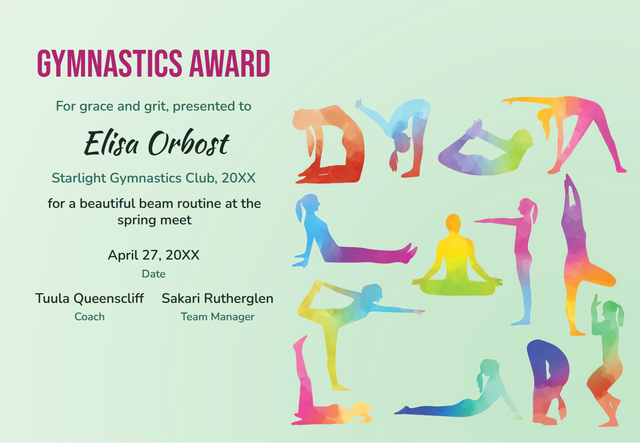
- Rainbow Poses Gymnastics Award Certificate
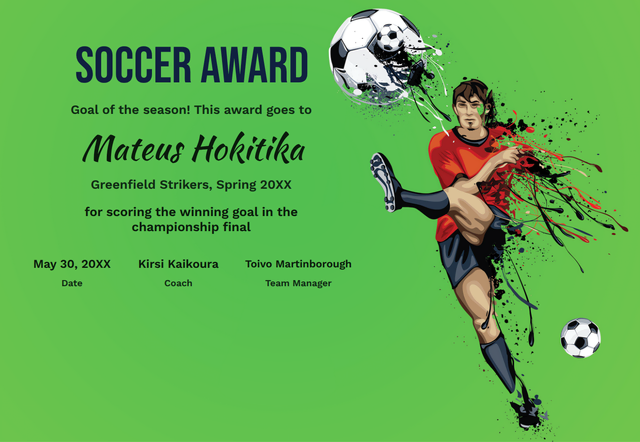
- Soccer Kick Award Certificate
- Soccer Silhouette Award Certificate

- Basketball Players Award Certificate

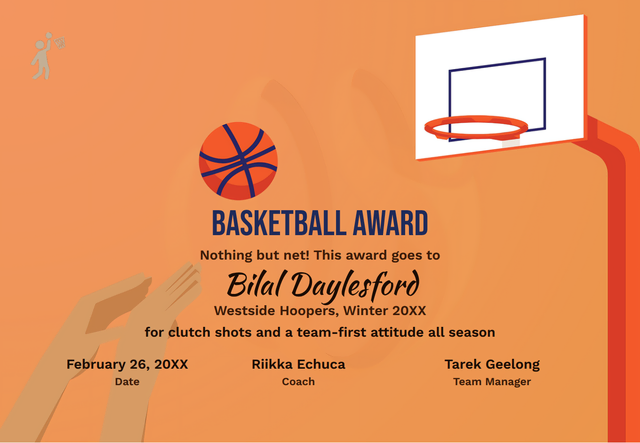
- Basketball Hoop Award Certificate
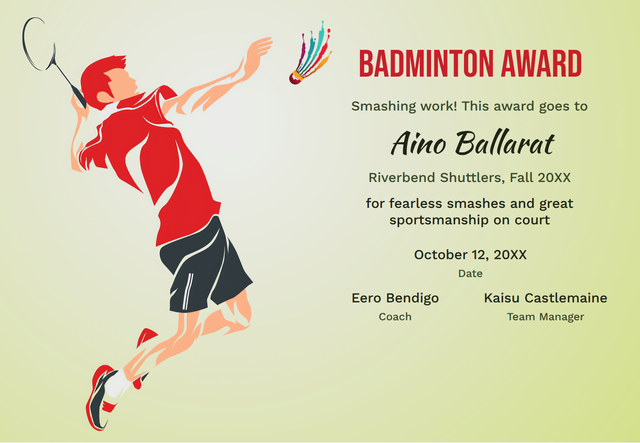
- Badminton Smash Award Certificate
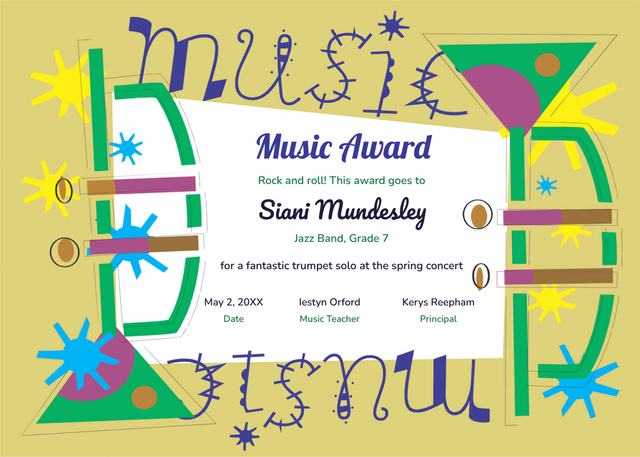
- Funky Music Award Certificate
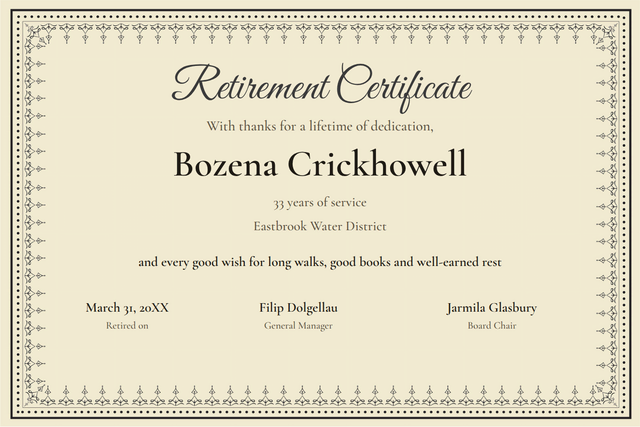
- Ivory Fleuron Retirement Certificate
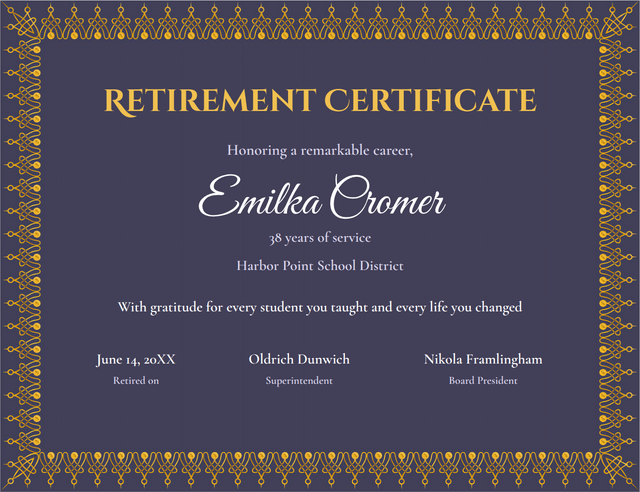
- Navy and Gold Lace Retirement Certificate
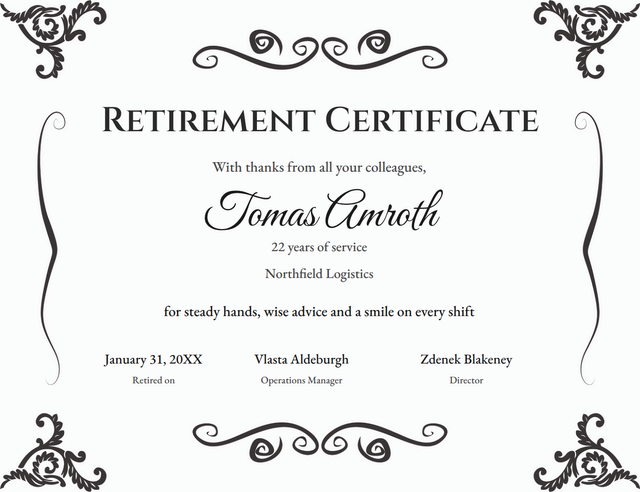
- Scroll Corners Employee Retirement Certificate
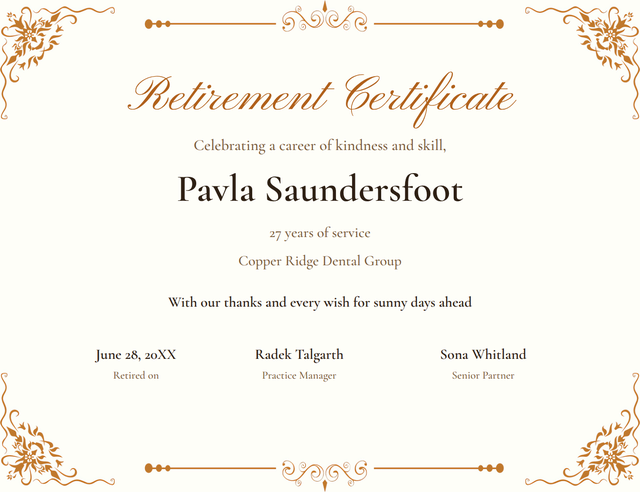
- Copper Flourish Retirement Certificate
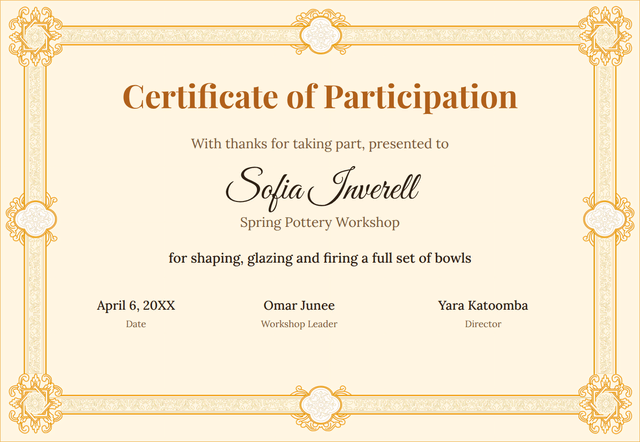
- Peach Medallion Certificate of Participation
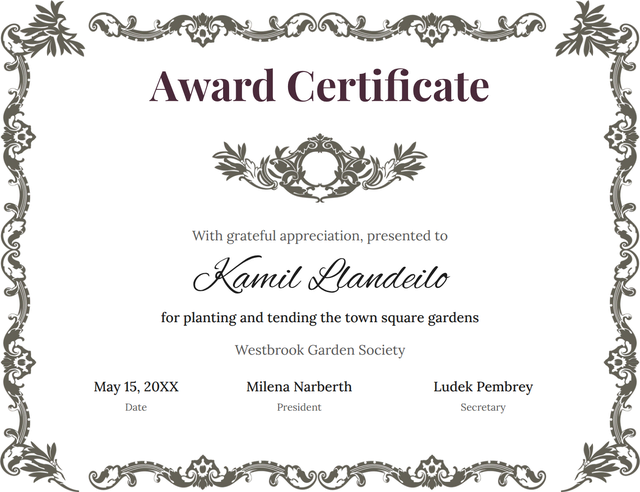
- Baroque Scroll Award Certificate
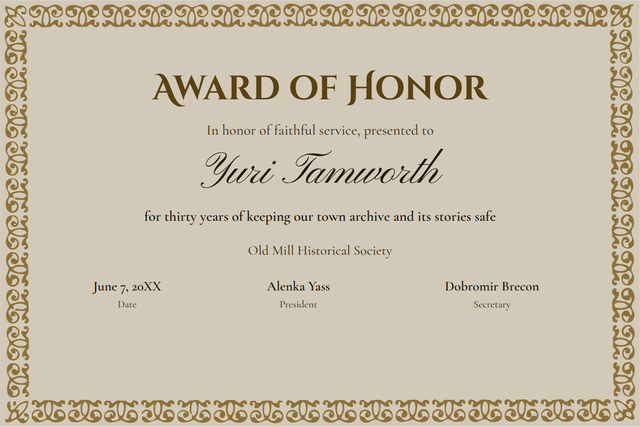
- Bronze Scroll Award of Honor Certificate
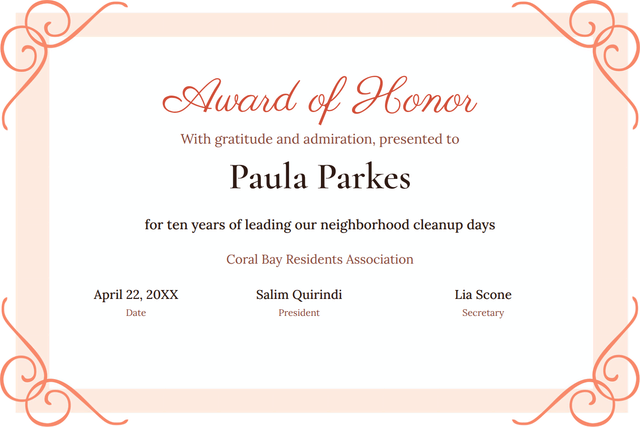
- Coral Swirl Award of Honor Certificate
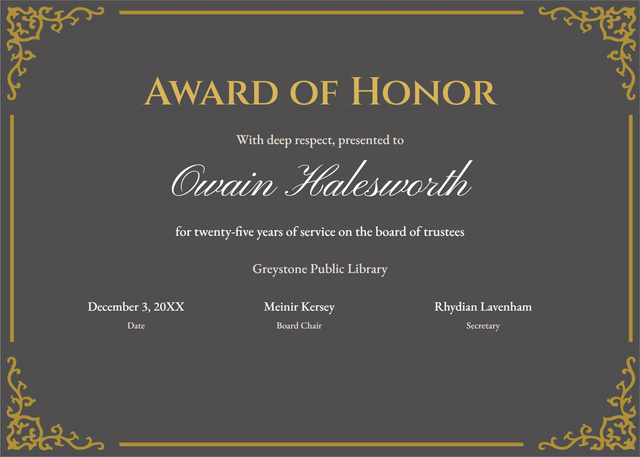
- Charcoal and Gold Award of Honor Certificate
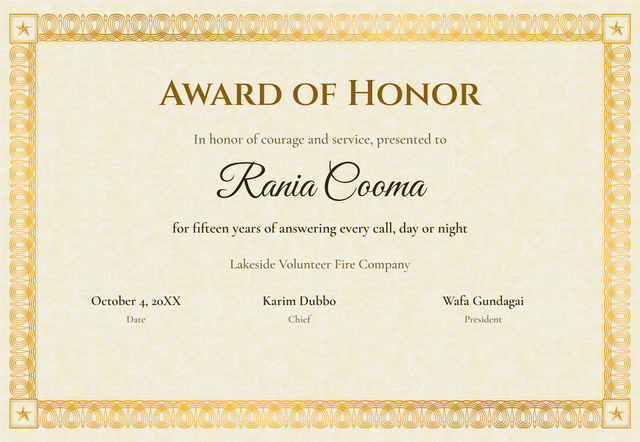
- Gold Coil Award of Honor Certificate
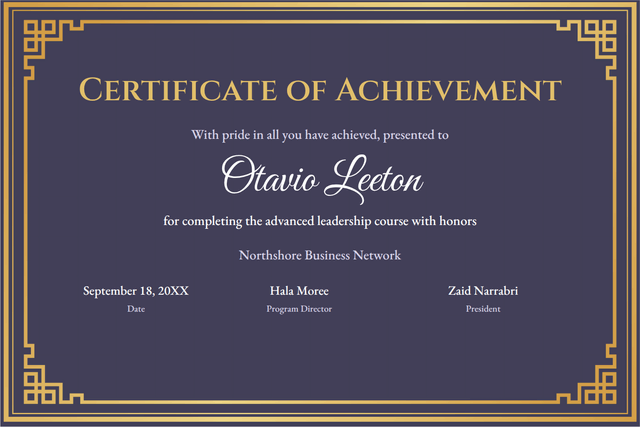
- Midnight Blue Certificate of Achievement
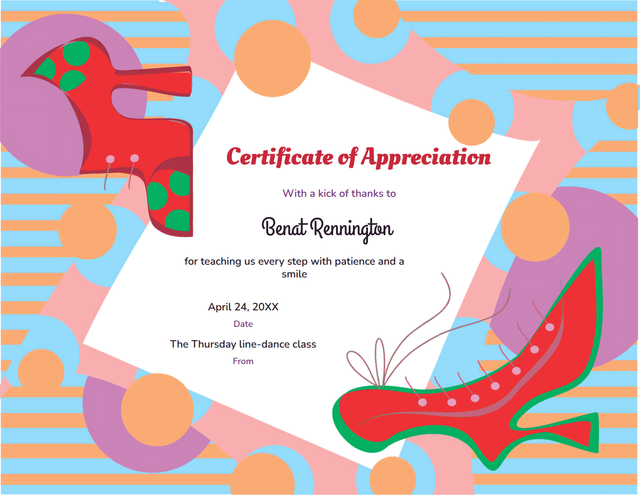
- Red Boots Certificate of Appreciation
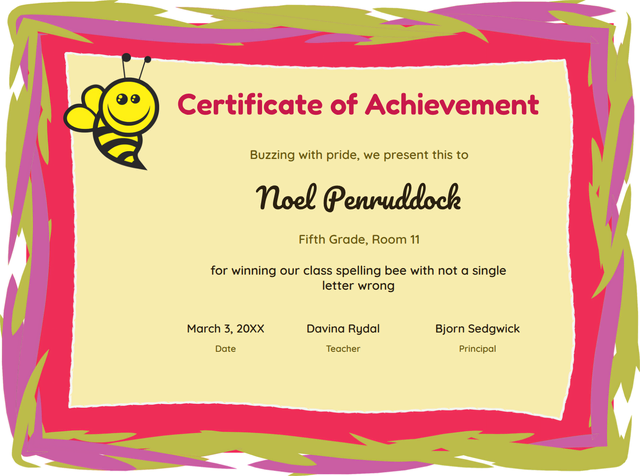
- Spelling Bee Certificate of Achievement
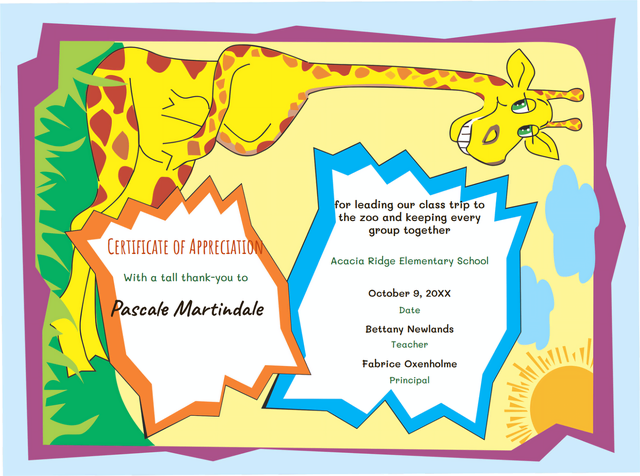
- Safari Giraffe Certificate of Appreciation
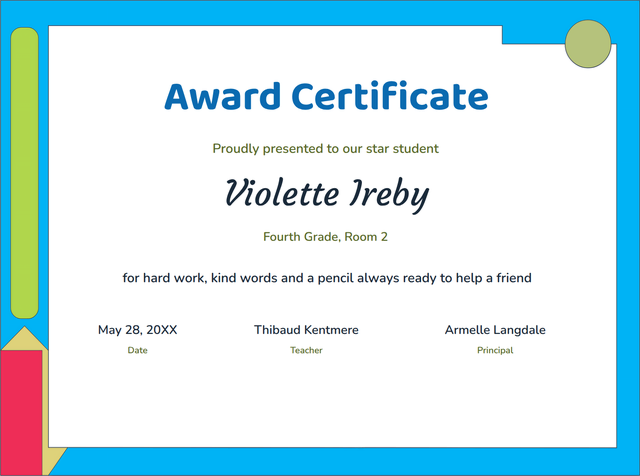
- Blue Pencil Frame Award Certificate
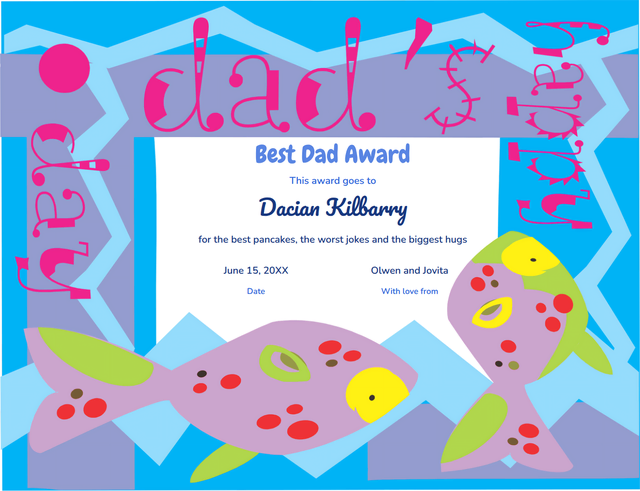
- Best Dad Award Certificate
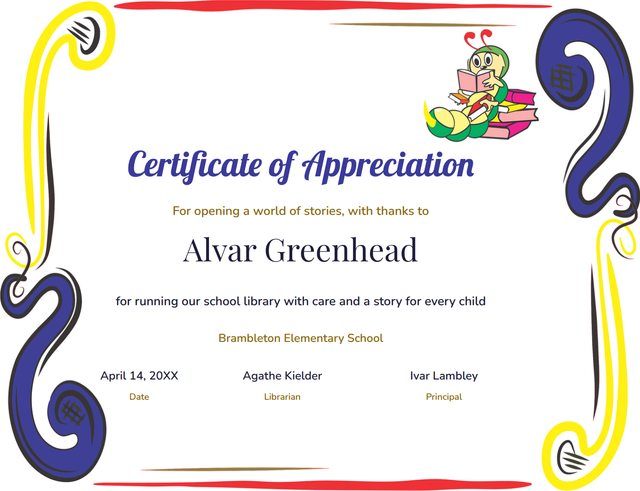
- Bookworm Certificate of Appreciation
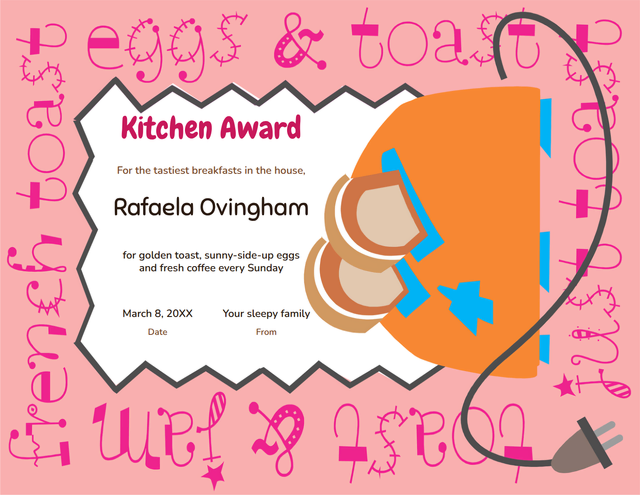
- Eggs and Toast Kitchen Award Certificate
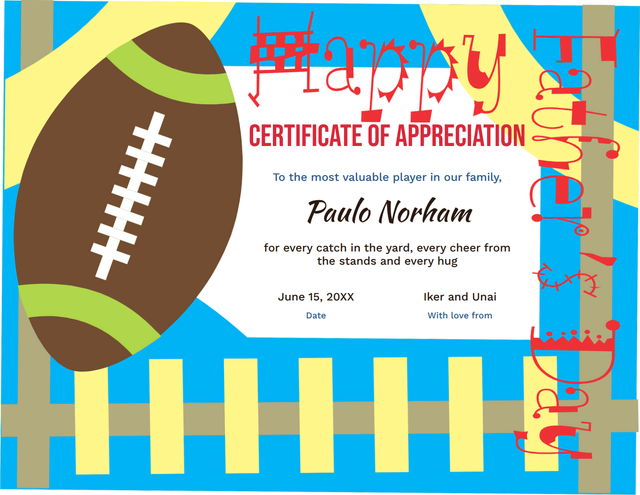
- Football Father’s Day Certificate of Appreciation
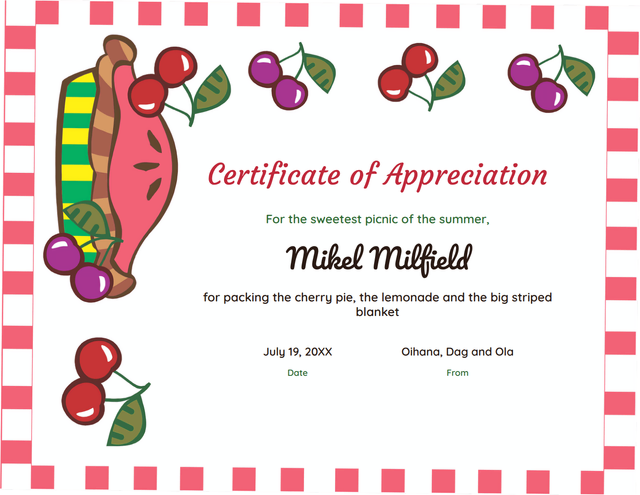
- Cherry Picnic Certificate of Appreciation
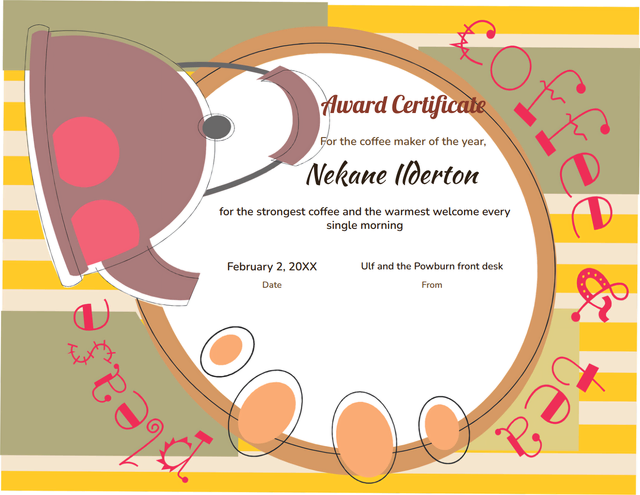
- Coffee and Tea Award Certificate
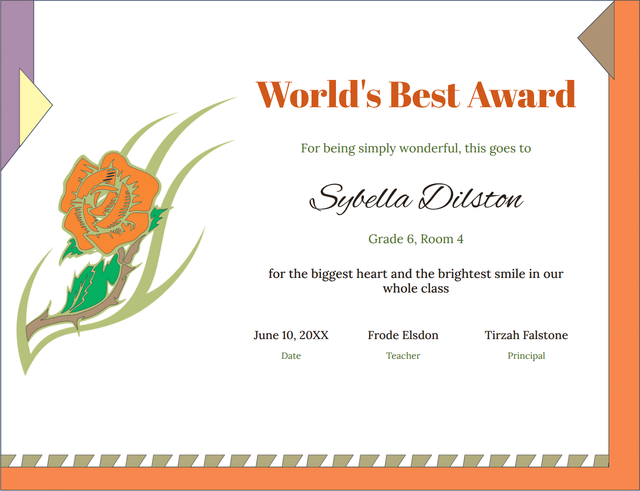
- Orange Rose World’s Best Award Certificate
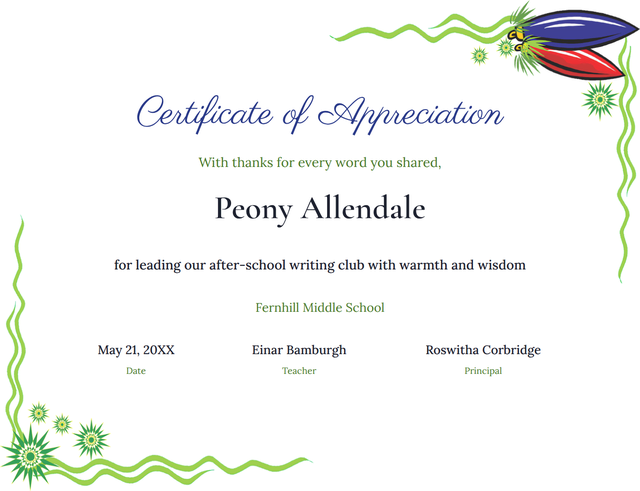
- Quill and Vine Certificate of Appreciation
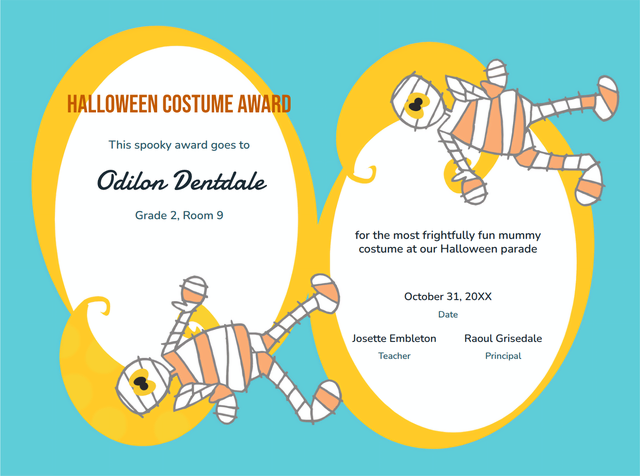
- Mummy Halloween Costume Award Certificate
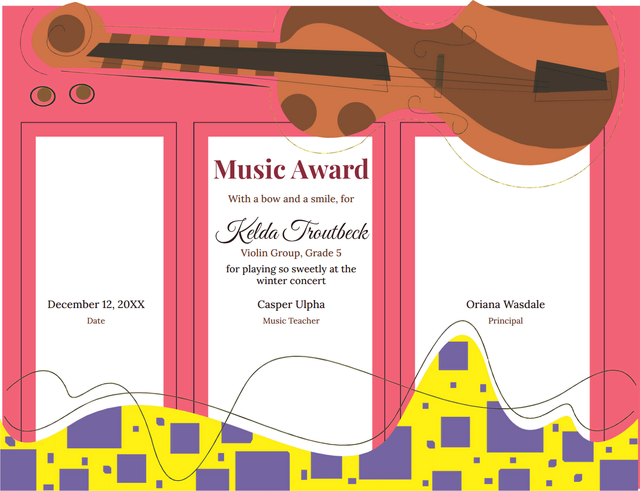
- Pink Violin Music Award Certificate
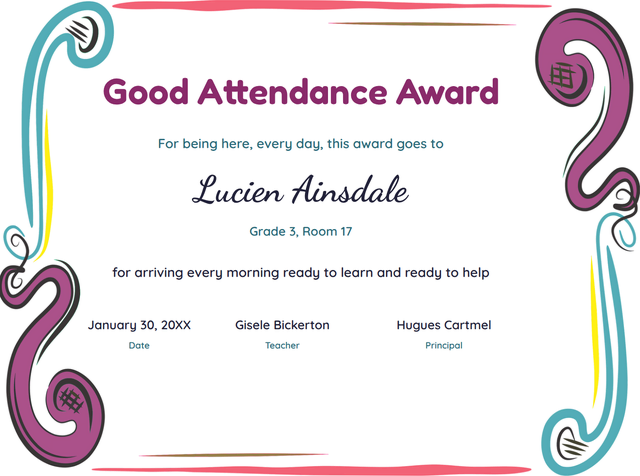
- Good Attendance Award Certificate
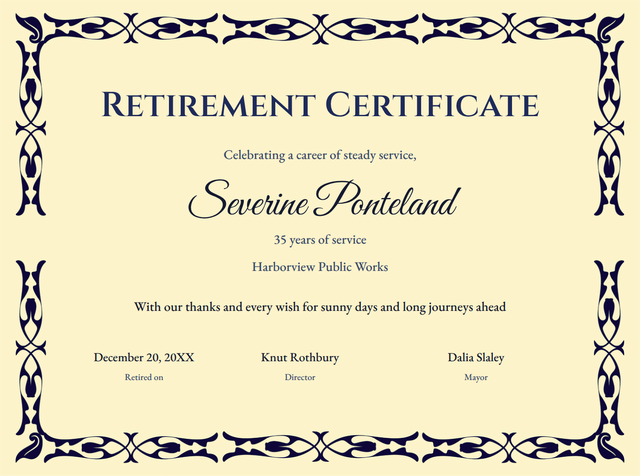
- Navy Arabesque Retirement Certificate
Common questions
About this design
An award certificate template with a scalloped border of blue guilloche rings around a white panel and a small blue rosette on the right. A title in classic capitals and an opening line lead to the name, what it is for, the organization, the date and the president and secretary presenting it.
It suits an orchestra, a choir or a community club honoring a leader or a long-time member. It prints on US Letter, landscape, the rosette at the right.
Press "Customize this template", then click any text on the certificate and type your own. Every text can be made bigger or smaller, or dragged to a new spot. When it looks right, press Download.
Yes. Your PDF, PNG and JPG files are made from the same layout you see on the page, at 300 DPI.
US Letter, landscape. It prints at home or at a print shop, on plain paper or card. In the print settings, choose Actual size (100%), not Fit to page, so it comes out at its true size.